DNS management
Last updated: May 22, 2026
American Cloud's DNS Manager lets you create DNS zones and manage records for your domains directly from the portal. It supports the common record types: A, AAAA, CNAME, MX, TXT, NS, SOA, SRV, and CAA.
Understanding DNS
DNS attaches human-readable domain names to machine-usable IP addresses. Instead of needing to know the IP address of the website you are navigating to, you can enter https://americancloud.com for example.
Register the domain
American Cloud is not a domain registrar, but the DNS Manager works with any registrar (for example, GoDaddy, BlueHost, or HostGator). Register your domain there first, then point its name servers at American Cloud as described in Use American Cloud's name servers.
Create a DNS zone
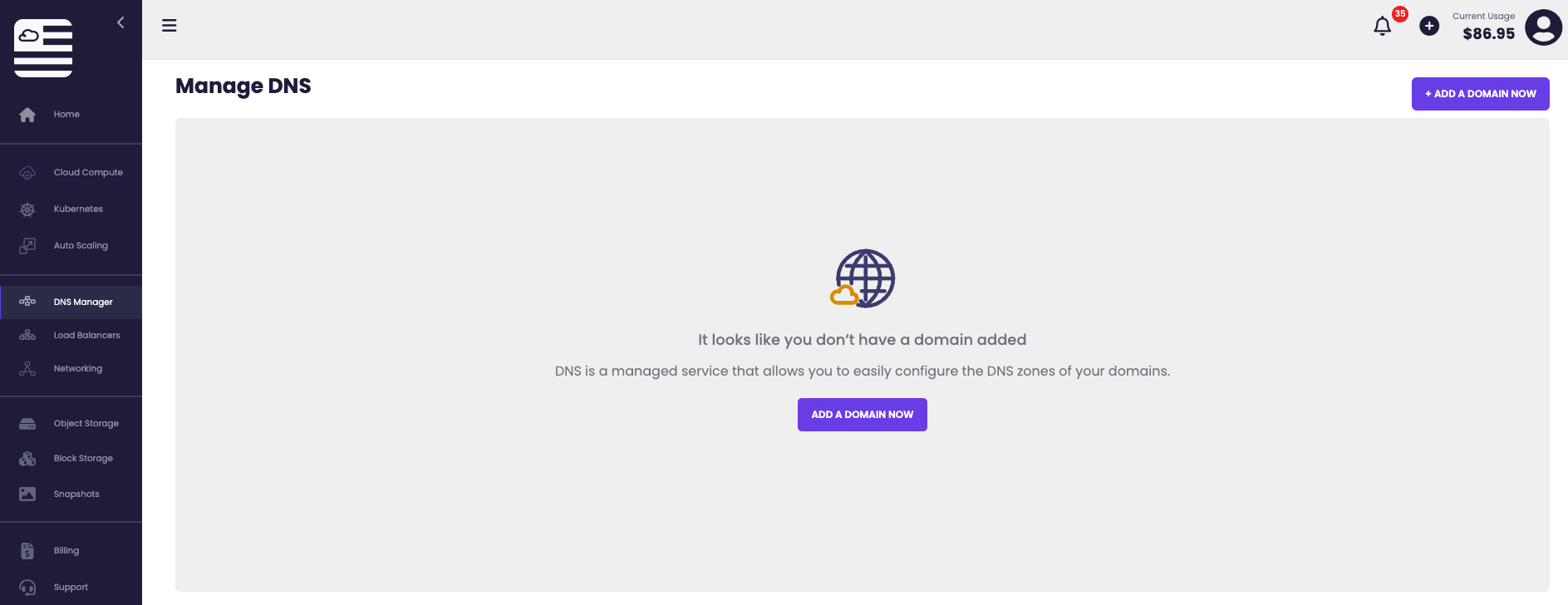
- In the left navigation, under Networking, select DNS.
- In the top right of the DNS zones page, click + Create Zone.
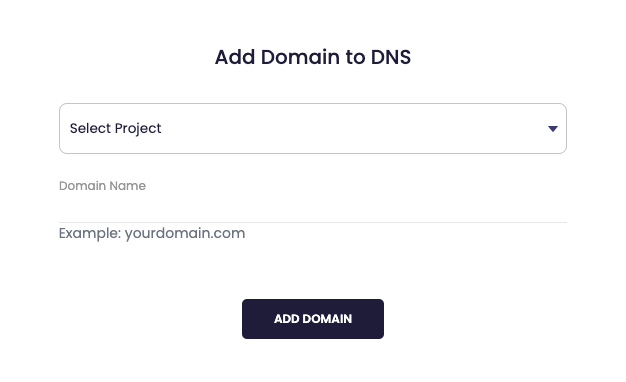
- On the Create DNS zone page, enter your domain in the Domain name field (for example,
exampledomain.com— nowww.prefix). - Click Create Zone.
The new zone is created with two default NS records pointing at American Cloud's name servers.
Add DNS records
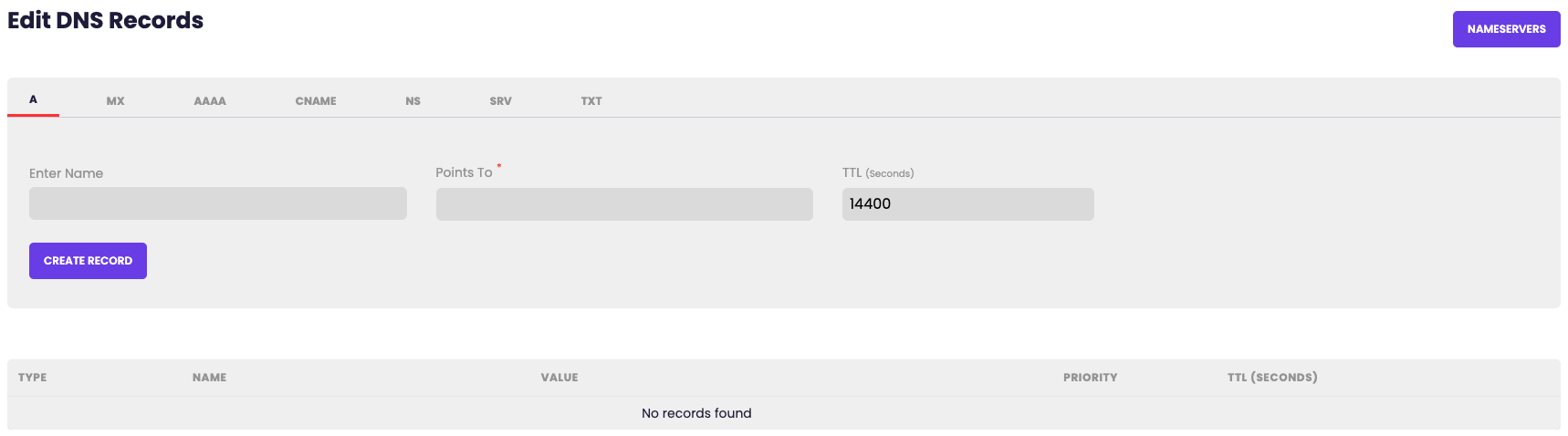
DNS records associate domain names with information such as a server's IP address or a mail server. American Cloud supports the following record types:
- A and AAAA
- CNAME
- MX
- TXT
- NS
- SOA
- SRV
- CAA
To add a record:
- From the DNS zones page, click the zone you want to manage.
- In the Records section, click + Add Record.
- Choose the record Type, enter the Name, TTL, and Value, then save.
To change or remove a record, use the [edit] or [delete] links on its row.

If you are migrating to American Cloud from another DNS provider, add all of the necessary records here before pointing your domain's registrar at American Cloud's name servers.
Use American Cloud's name servers
Once your records are in place, set American Cloud's name servers as the authoritative name servers for your domain. Log in to your domain registrar's control panel and set the name servers for your domain to:
ns1.americancloud.orgns2.americancloud.org
See your registrar's documentation for the exact steps. After you save the change, use our DNS lookup to see which name servers Cloudflare and Google return for your domain. When both list the two above, the change has reached them.
Delete a DNS zone
To remove a zone, open it from the DNS zones page and click [delete zone] in the top right.
Note: Deleting a zone removes all of its records. If the zone is still authoritative for a live domain, queries will fail until you update the registrar.