A2 object storage
Last updated: May 23, 2026
A2 is American Cloud's S3-compatible object storage. You create a storage unit, then organize data into buckets and optional folders inside each bucket. Everything is reachable through the S3 API or directly in the portal.
About object storage
Object storage stores data as discrete objects, each with a unique identifier, rather than in a hierarchical file system. Each object can be any size or format — documents, images, videos, backups, or other unstructured data. Object storage is highly scalable, durable, and accessible over the network using standard S3 APIs.
Key features:
- Scalability — capacity grows without disrupting existing objects.
- Durability — multiple copies are kept across nodes to protect against hardware failures.
- S3 API access — use any S3-compatible tool (such as
s3cmd, AWS CLI, or rclone) against the A2 endpoint. - Metadata — attach key/value pairs to objects for indexing or app-specific information.
Create a storage unit
- In the left navigation, under Storage, select Object storage.
- In the top right of the Object storage page, click + Create Unit.

- On the Create object storage page, enter a Name. Alphanumeric characters only (
a-z,A-Z,0-9), max 100 characters. - Click Create Storage Unit.
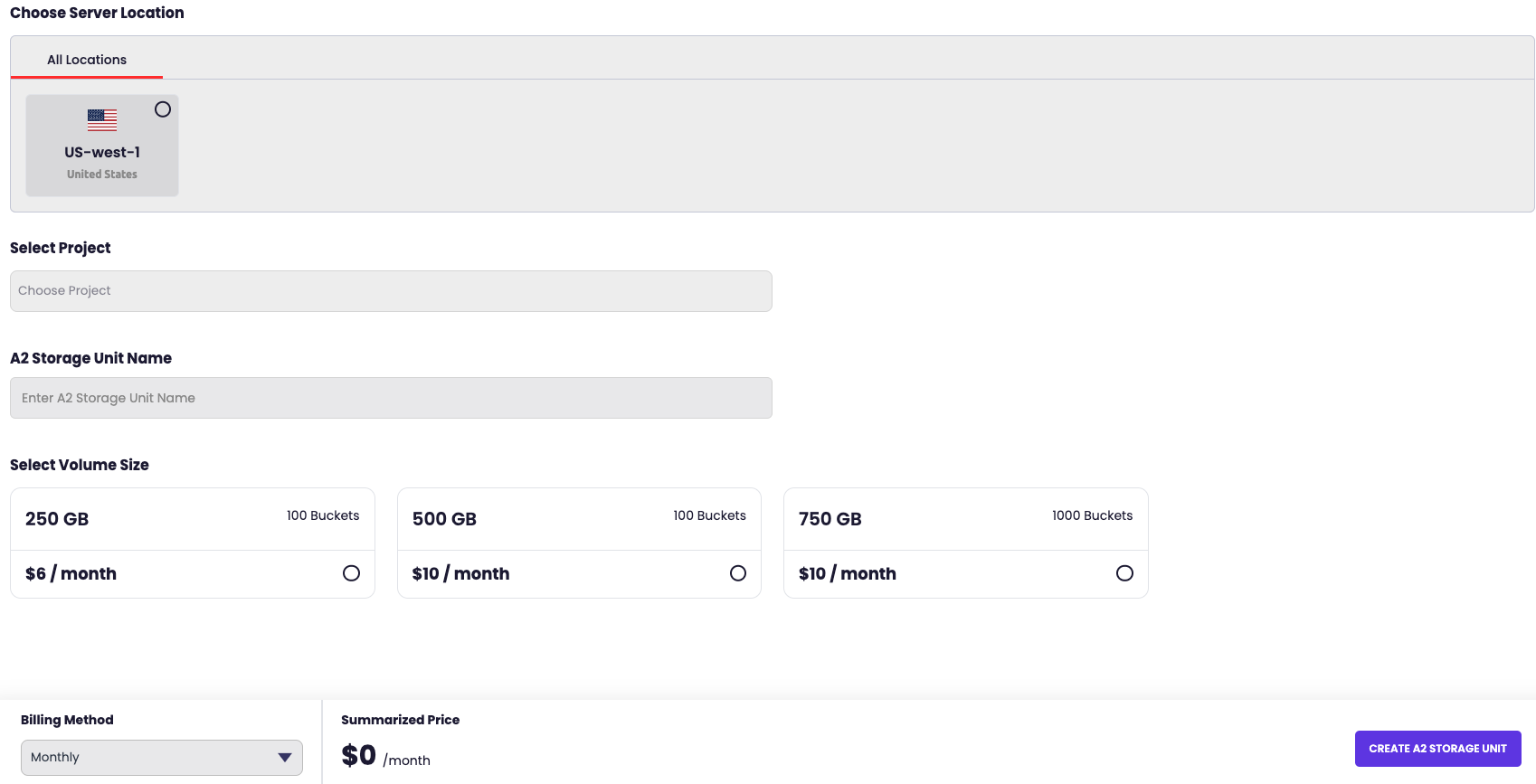
The new unit appears in the storage units list. Its full name is <your-account>$<name> (for example, romanmc87085552556$teststorage). By default the unit has no usage limit and supports up to 10,000 buckets.
Storage unit overview
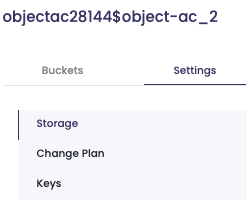
Click a storage unit in the list to open its detail page. The page is divided into three panels.
Storage
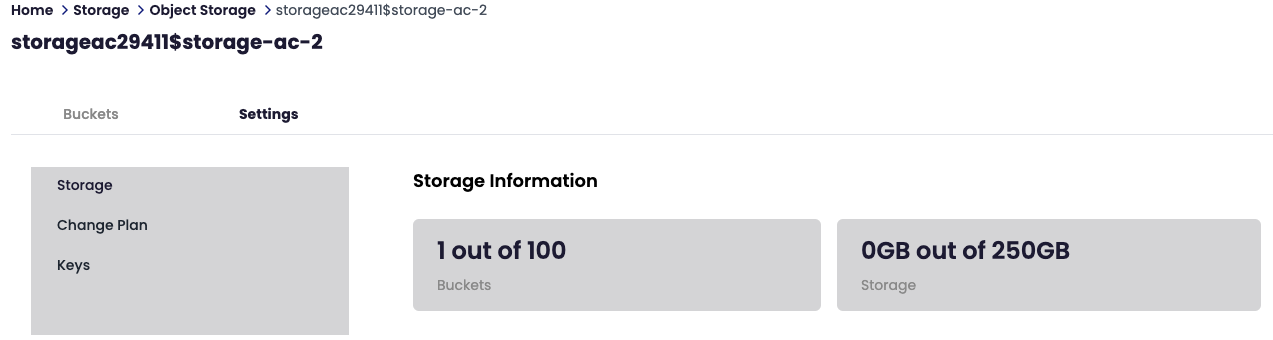
Shows current usage: Used, Limit, Max buckets, and Created date.
S3 Access
The credentials and endpoint you need for any S3 client:
- Endpoint —
a2-west.americancloud.com - Access key — click [copy] to grab it.
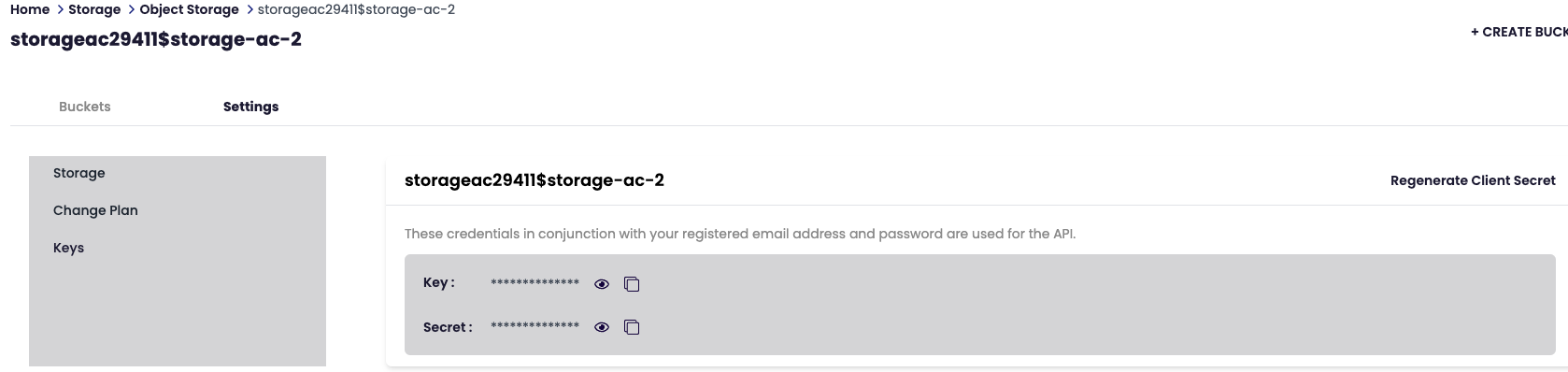
- Secret key — hidden by default. Click [show] to reveal, [copy] to grab.
- S3 guide — opens the s3cmd setup guide.
Buckets
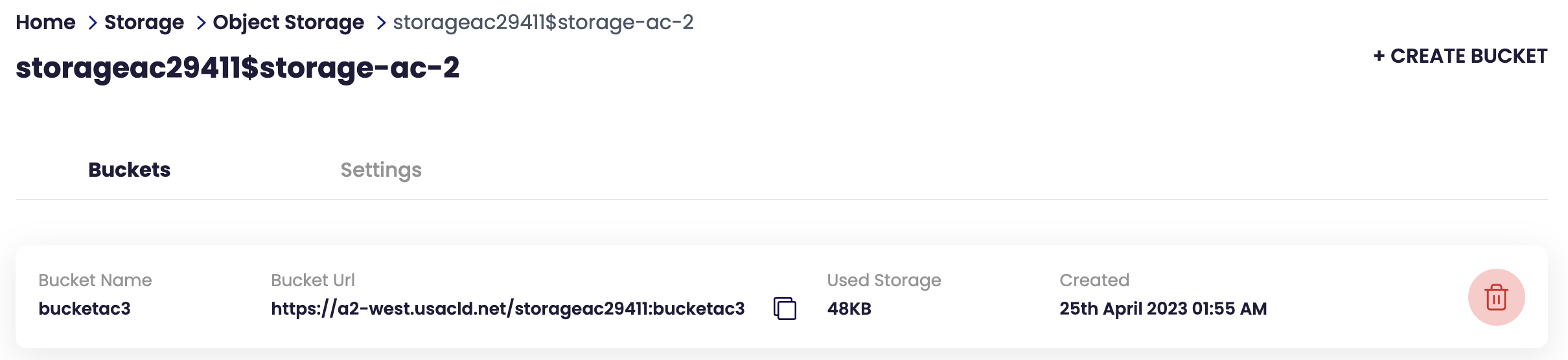
Lists all buckets in this unit, with their S3 URL, object count, size, and creation date.
Set a storage limit
To cap how much data the unit can hold (and prevent unexpected charges):
- On the storage unit detail page, click Set Limit in the top right.
- In the Set Storage Quota dialog, enter a Max size (GB).
- Click Set Limit. Leave the field blank to remove an existing limit.
Create a bucket
A bucket is a top-level container for objects.
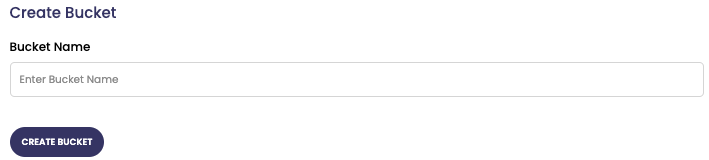
- On the storage unit detail page, in the Buckets section, click + Add Bucket.
- In the Create Bucket dialog, enter a Bucket name. Lowercase letters, numbers, dots, and hyphens; must start and end with a letter or number.
- Click Create Bucket.
The bucket appears in the Buckets list with its S3 URL. Click [copy] to copy the URL, or [delete] to remove the bucket.
Upload files and create folders
Click a bucket in the Buckets list to open it.
- Upload files — click Upload in the top right, or drag and drop files onto the page.
- Create a folder — click + New Folder in the top right. Folder names allow letters, numbers, dots, hyphens, and underscores.
Uploads are private by default. Use the Show visibility toggle to inspect each object's visibility.
For uploading from the command line, see the s3cmd guide.
Share a file
To give someone temporary access to an object without exposing your credentials:
- In the bucket, find the file you want to share and click [share] on its row.
- In the Share Link dialog, choose how long the link stays active: 1h, 6h, 12h, or 24h.
- Copy the generated link and send it.

Each file row also has [download] to pull the object to your local machine and [delete] to remove it.
Delete a storage unit
To remove a storage unit, open its detail page and click Delete in the top right.
Note: Deleting a storage unit removes all of its buckets and objects. The action cannot be undone.