Passkeys vs passwords: passkey sign-in is live

American Cloud
American Cloud Team
You can now sign in to American Cloud with your fingerprint, your face or your device PIN, with no password or two-factor code to type. That's a passkey, and it's been live since November 12 for every account that signs in with an email address. New accounts can sign up with a passkey too. Unlike a password, a passkey only works on the site it was made for, so a fake login page has nothing to steal.
How do passkeys work?
A passkey is a pair of cryptographic keys. When you add one, your device or password manager makes the pair, keeps the private key, and hands us the public key. We store only that public key, which is useless to anyone who steals it.
When you sign in, the portal sends your device a one-time challenge. Your device asks for your fingerprint, face or PIN, signs the challenge with the private key, and sends back the signature. We check it against the public key and you're in. Your fingerprint or face never leaves your device; we only learn that the check passed.
The browser is what stops a fake login page, and it does that before anything gets signed. Under the WebAuthn standard, a passkey belongs to the site it was created on, and the browser only offers it to that site. A lookalike login page on another domain gets no passkey, no signature and nothing to replay.
Passkey vs password: what changes on your account?
A password is a secret you type into a page. If the page is fake, you've just handed it over. The six-digit code from an authenticator app has the same problem: a fake page can ask for it and pass it straight on to the real site. NIST's guidance says: "Passwords are not phishing-resistant", and neither are one-time codes. In a 2022 fact sheet, CISA calls FIDO/WebAuthn "the only widely available phishing-resistant authentication."
A cloud account is worth more to an attacker than most. Your American Cloud account holds your API tokens, your SSH keys, the users on your team and the card that pays for your servers. Someone who signs in as you can start servers on your bill or make API tokens of their own.
Here's what a passkey changes on your account:
- At sign-in, it replaces both the password and the two-factor code.
- If you have a password, it keeps working. You can sign in with the passkey or the password, whichever is easier at the time.
- GitHub and Google sign-in keep working as they do today.
Open the portal from a bookmark or by typing its address. A passkey protects you from a fake login page, and that habit protects your password too.
How do I add a passkey to my American Cloud account?
It takes four steps:
- Sign in to the portal.
- Open Account → My account.
- In the Profile section, find the Passkeys row and click Add a passkey.
- Follow the prompt from your browser or your password manager to save the passkey.
The passkey then shows in the Passkeys row with the date you added it. You can add more than one, for example one for each device. If you lose one device, the other still signs you in.
Where the passkey lives is up to your device. A synced passkey is copied across your devices by your password manager, such as iCloud Keychain on Apple devices or Bitwarden. A device-bound passkey, such as one saved only in Windows Hello on one PC, stays on that device. Synced is easier to use, since a new phone gets your passkeys back; device-bound means nobody can reach the key through your sync account.
How do I sign in with a passkey?
- Go to the sign-in page.
- Click Sign in with a passkey.
- Approve the prompt with your fingerprint, your face or your device PIN.
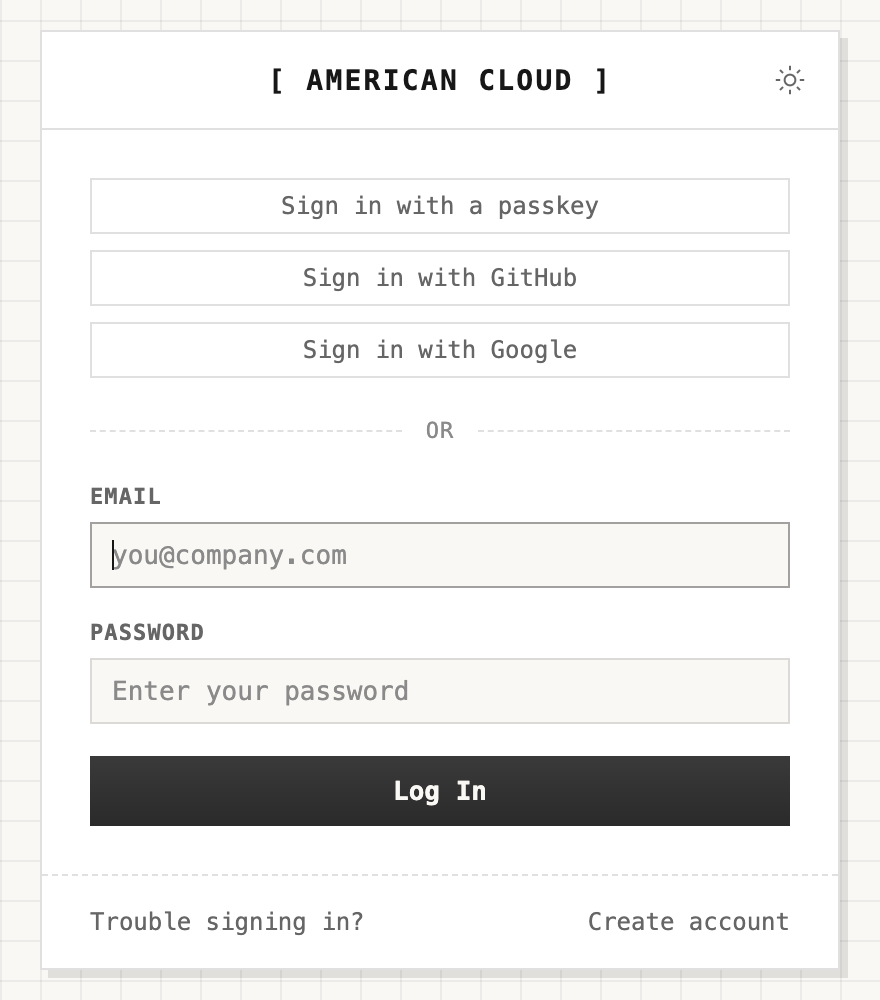
If your passkey is on your phone and you're on a different computer, your browser can usually show a QR code to scan with the phone, which then approves the sign-in.
What if I lose my passkey, or want to remove one?
If you lose the device that holds your only passkey, sign in with your password. If you have no password or don't remember it, click Trouble signing in? on the sign-in page and follow the email to set a new password. Then sign in and add a new passkey.
To remove a passkey, for a sold laptop or a phone you've replaced:
- Open Account → My account.
- In the Passkeys row, click Remove next to the passkey.
- Confirm the removal.
Then remove it from your device or your password manager too. The portal removes only its own copy, the public key. The private key stays on your device or in your manager until you delete it there.
Should I still keep two-factor on?
Yes, if your account has a password. The password still opens the account, so keep it long, unique and in a password manager, and keep two-factor turned on behind it. You'll find Two-factor auth in the same Profile section as Passkeys, and it pairs with an authenticator app. Then let the passkey be the way you actually sign in: it's faster than typing a password and a code.
The steps also live in the docs, at Sign in with a passkey. For everything else in My account, see your American Cloud account.