American Cloud account
Last updated: May 27, 2026
Your American Cloud account is the gateway to creating and managing every American Cloud product and service. This article covers the Account section of the portal — your profile, users, SSH keys, API keys, and billing pointers.
In the left navigation, Account expands into five pages:
- My Account — profile, password, two-factor auth, wallet balance, and usage.
- Billing — payment methods and invoices.
- API keys — credentials for the American Cloud API.
- SSH keys — public keys attached to your account. See Managing SSH keys.
- Users — additional users with scoped permissions.
My Account
Open Account → My Account to see your wallet, current usage, and profile in one place.
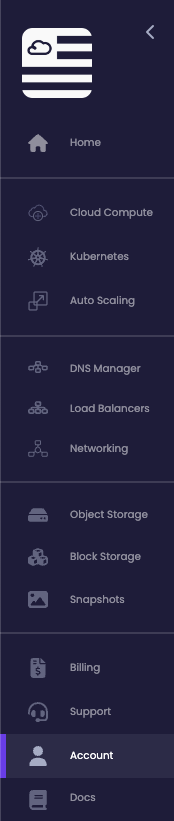
The page is broken into four sections:
- Top metrics — Wallet balance, Bonus credits, Month-to-date spend, and Projected month total.
- Balance — wallet and bonus-credit totals.
- Usage — Month to date, Projected this month, Projected renewals.
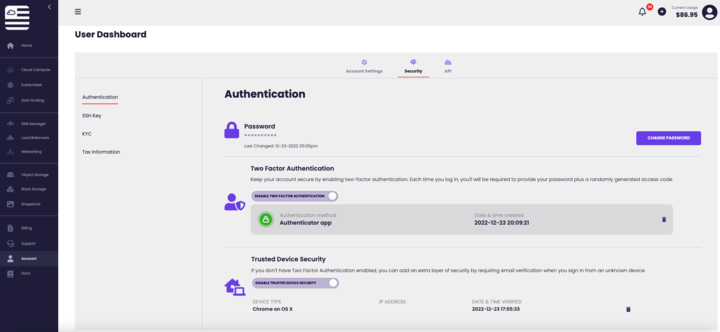
- Profile — Name (edit), Email (Change), Password (Change), and Two-factor auth (Enable).
To change a profile field, click the action link next to it (edit, Change, or Enable) and follow the prompts.
Tip: Enabling Two-factor auth is strongly recommended. The Enable link walks you through pairing an authenticator app.
SSH keys
Open Account → SSH keys to add or remove the public keys used when launching VMs and Kubernetes clusters.
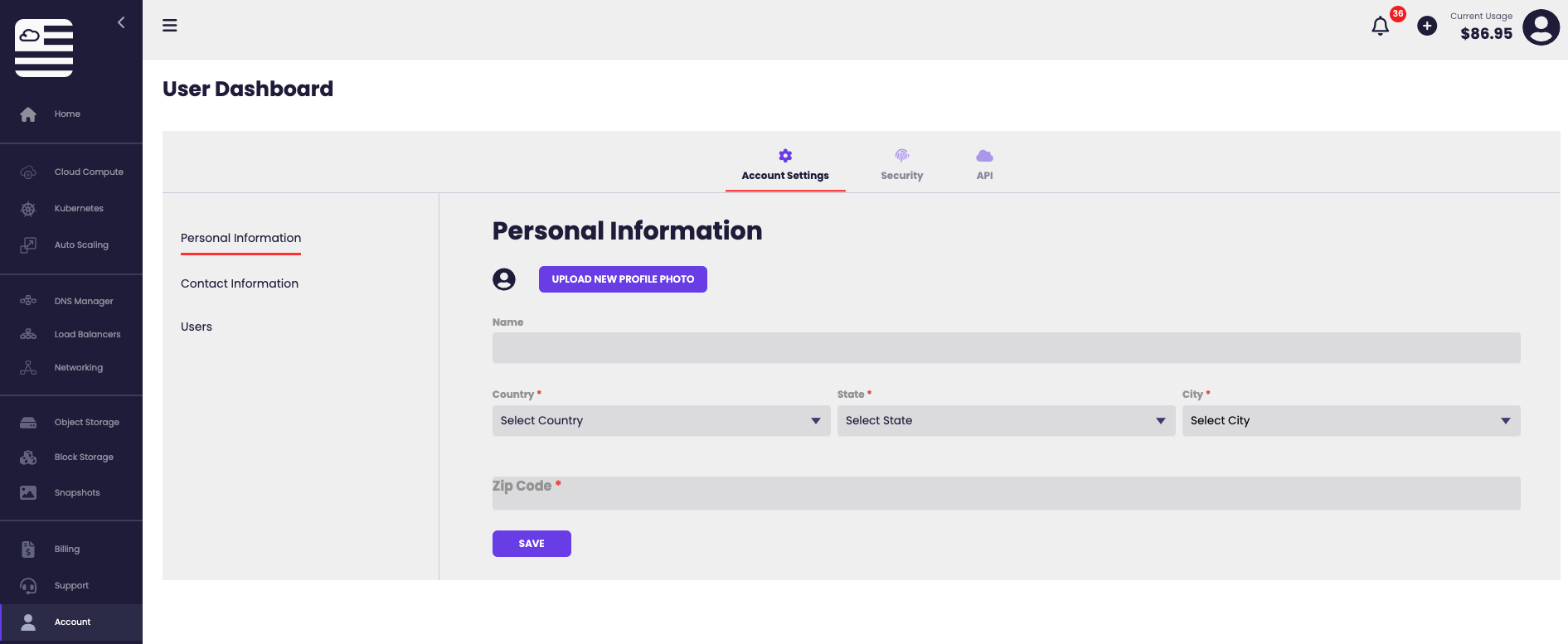
See Managing SSH keys for full instructions on adding a key, generating one in the portal, and deleting one.
Users
Open Account → Users to invite additional people to your account and scope what they can do.
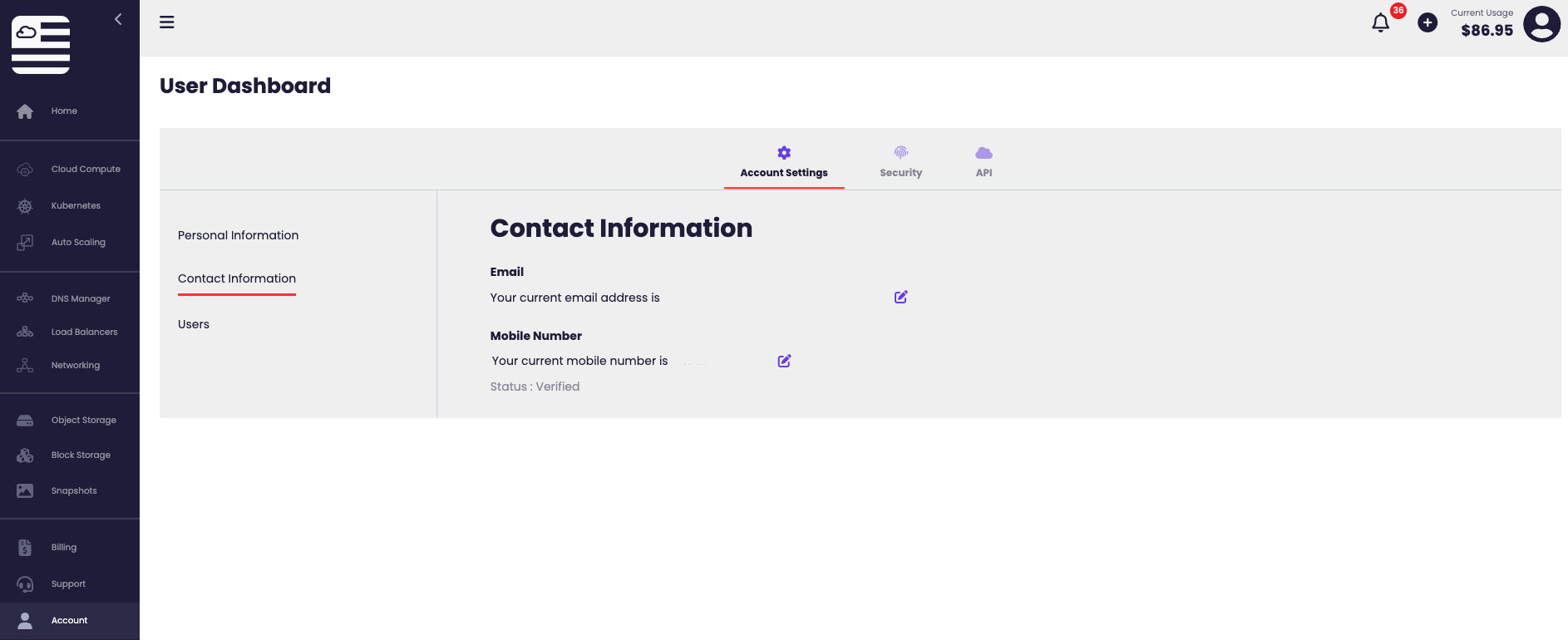
The list shows each user's name, email, status (ACTIVE, etc.), and roles (a short summary like 14 manage, 14 read).
Add a user
- Click + Add User in the top right.
- Enter the new user's Email, First name, and Last name.
- Use the Permissions quick-set buttons or set granular per-resource permissions:
- Developer — applies a sensible developer preset.
- Account Admin — full access to everything.
- Clear All — uncheck every box.
- Set granular permissions in the matrix. Each row has Read and Manage checkboxes:
- Resources — Virtual Machines, Kubernetes, Block Storage, Snapshots, Object Storage, Networking, Databases, DNS, WordPress, SSH Keys.
- Account — Account, API Keys, Billing, User Management.
- Click Add User.
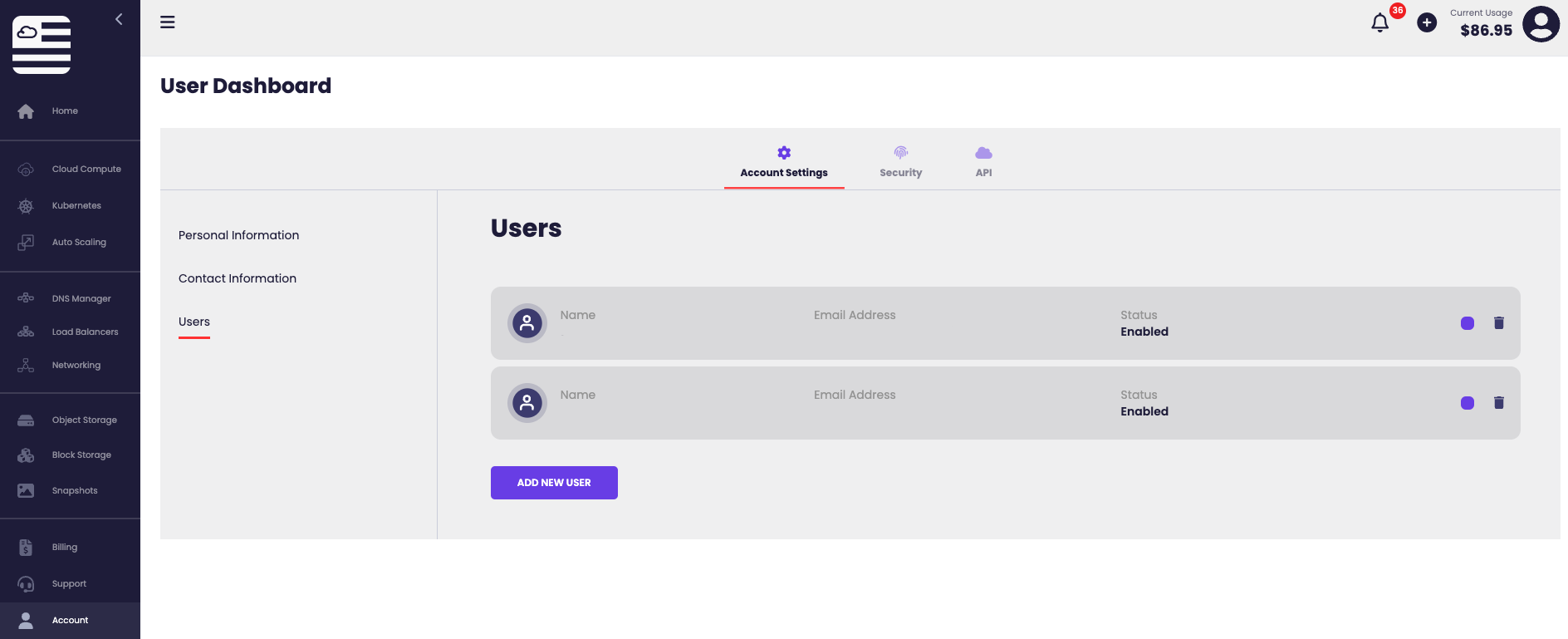
The user receives an email invitation and appears in the Users list once they accept.
API keys
Open Account → API keys to create credentials for the American Cloud API.
To create a key, click + Add Key and give it a name. The portal generates a Client ID and Client Secret and shows them once in an API Credentials dialog.
Note: Copy the Client Secret immediately — it will not be displayed again. If you lose it, revoke the key and create a new one.
Each key row shows its Client ID, Created date, Last used, Status (Active / Revoked), and a Revoke action.
Billing
Open Account → Billing for payment methods, invoices, and coupons.
Delete your account
To delete your American Cloud account, email [email protected] and a technician will assist.