Managing SSH keys
Last updated: May 22, 2026
About SSH Keys
SSH key, or Secure Shell key, is a cryptographic key pair used for securely authenticating and encrypting communication between two entities in a Secure Shell (SSH) protocol-based system, such as remote access to a server or a Git repository. SSH is a widely used protocol for securely connecting to and managing remote servers over a network.
An SSH key pair consists of two keys: a private key and a public key. The private key is kept secret and is known only to the owner, while the public key is shared with other parties. When a client initiates an SSH connection to a server, the server requests the client to authenticate using a key pair. The client uses its private key to generate a digital signature, which is sent to the server along with the public key. The server then uses the public key to verify the digital signature, and if it matches, the client is granted access.
RSA vs ED2519
RSA and Ed25519 are two different types of cryptographic key pairs used in SSH for secure communication and authentication. Here are the key differences between RSA and Ed25519 key pairs:
Algorithm
RSA (Rivest-Shamir-Adleman) is a widely used asymmetric encryption algorithm, while Ed25519 is a newer elliptic curve cryptography (ECC) algorithm.
Key Size
RSA key pairs typically have larger key sizes, such as 2048 bits or 4096 bits, while Ed25519 key pairs have a fixed key size of 256 bits. This means that RSA keys are generally larger and require more computational resources for key generation, encryption, and decryption compared to Ed25519 keys.
Security
Both RSA and Ed25519 are considered secure for most purposes. However, Ed25519 is generally considered to provide stronger security with smaller key sizes compared to RSA, due to the use of elliptic curve cryptography, which offers higher security levels with shorter key lengths. RSA is susceptible to attacks such as factorization, while Ed25519 is designed to be resistant to various cryptographic attacks.
Performance
Ed25519 is known for its faster performance compared to RSA, as it requires less computational resources for key generation, encryption, and decryption. This makes Ed25519 more efficient for use in resource-constrained environments, such as embedded systems or high-traffic networks.
Compatibility
RSA is more widely supported and compatible with older systems and software, as it has been in use for a longer time. Ed25519, being a newer algorithm, may not be supported by all SSH implementations or older systems. However, most modern SSH clients and servers support Ed25519, and it is gaining wider adoption in recent years.
Key Management
RSA keys are typically managed using the ssh-keygen tool, which is available on most operating systems. Ed25519 keys can also be generated using ssh-keygen, but it may require a newer version of the tool that supports ECC algorithms. Additionally, RSA keys often require regular key size updates for maintaining strong security, while Ed25519 keys are fixed at 256 bits.
In summary, RSA and Ed25519 are both commonly used for SSH key-based authentication, but they differ in terms of algorithm, key size, security, performance, compatibility, and key management. The choice between RSA and Ed25519 depends on the specific use case, security requirements, and compatibility considerations of the system or network being used.
Generating SSH Keys
Generating SSH Keys using Terminal/CMD Prompt
Here are two ways to generate an SSH key for use within the American Cloud Cloud Management Platform (CMP).
Generate within the terminal or cmd prompt using the following commands:
Terminal or CMD Prompt
Open a terminal or cmd prompt on your local machine.
Run Commands
Run the command to generate rsa and/or ed2519 keys
- RSA
ssh-keygen -t rsa -b 4096 -C "[email protected]"
- Ed2519
ssh-keygen -t ed25519 -C "[email protected]"
Generate a keypair in the portal
The American Cloud portal can generate an SSH keypair for you. Use this option if you don't already have a key.
- In the left navigation, under Account, select SSH keys.
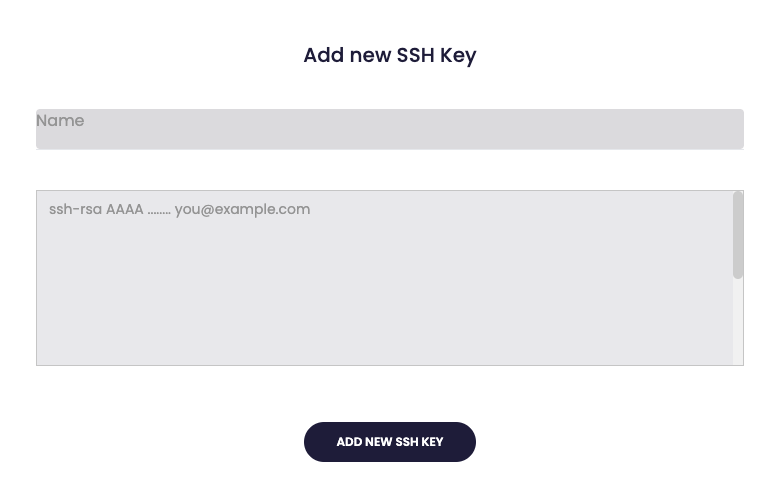
- In the top right, click + Add Key.
- In the Add SSH Key dialog, enter a Name for the key.
- Leave the Public key field empty and click Generate Key.
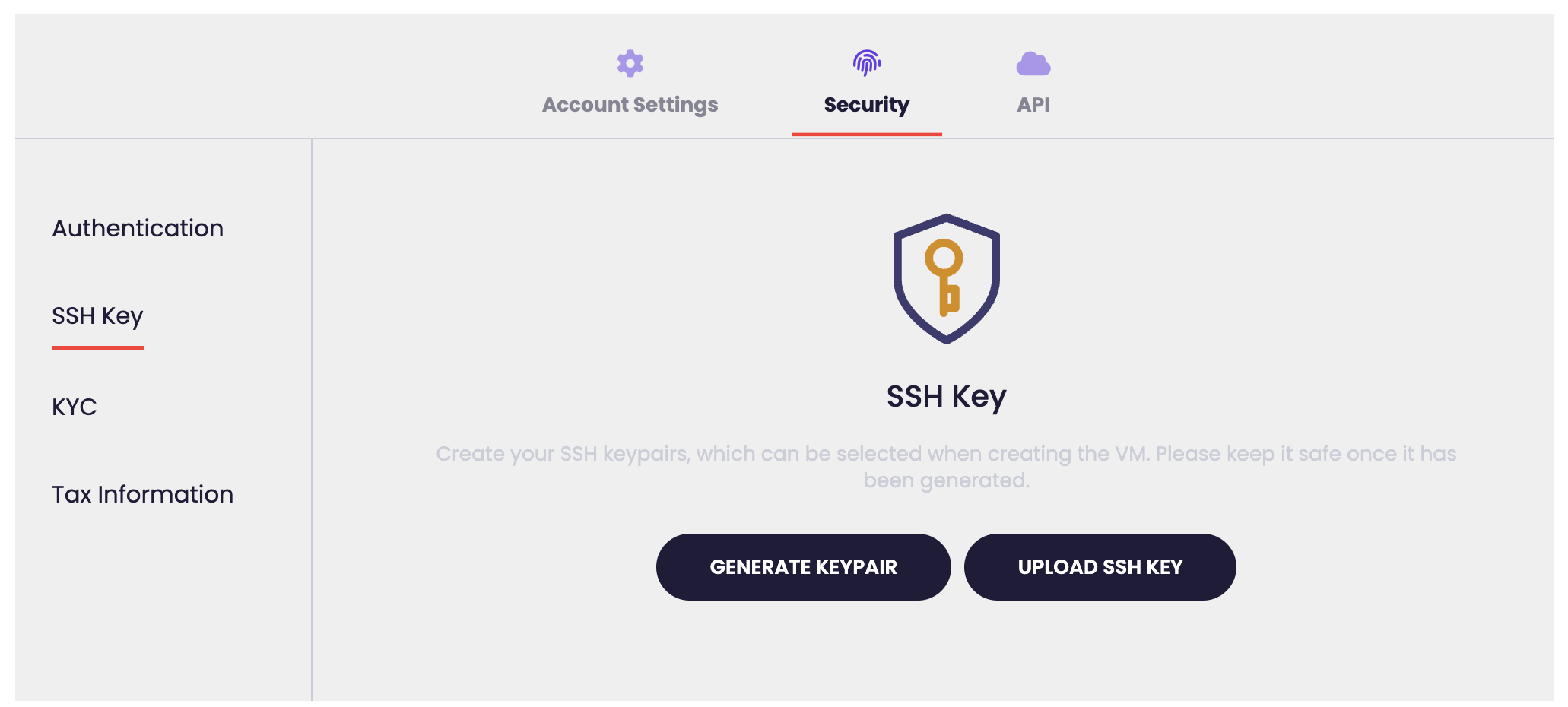
- Download and save the private key to your local machine immediately. It is shown only once.
Once saved, the new key appears in the SSH keys list and is ready to attach to a virtual machine.
Placing pre-generated keys
If you already have an SSH keypair, upload the public key to your account.
- In the left navigation, under Account, select SSH keys.
- In the top right, click + Add Key.
- In the Add SSH Key dialog, enter a Name for the key.
- Paste your public key into the Public key field and click Add Key.
Once added, the key appears in the SSH keys list with its fingerprint and is ready to attach to a virtual machine.
Deleting an SSH key
To remove an SSH key from your account, find the key in the SSH keys list and click Delete on its row.
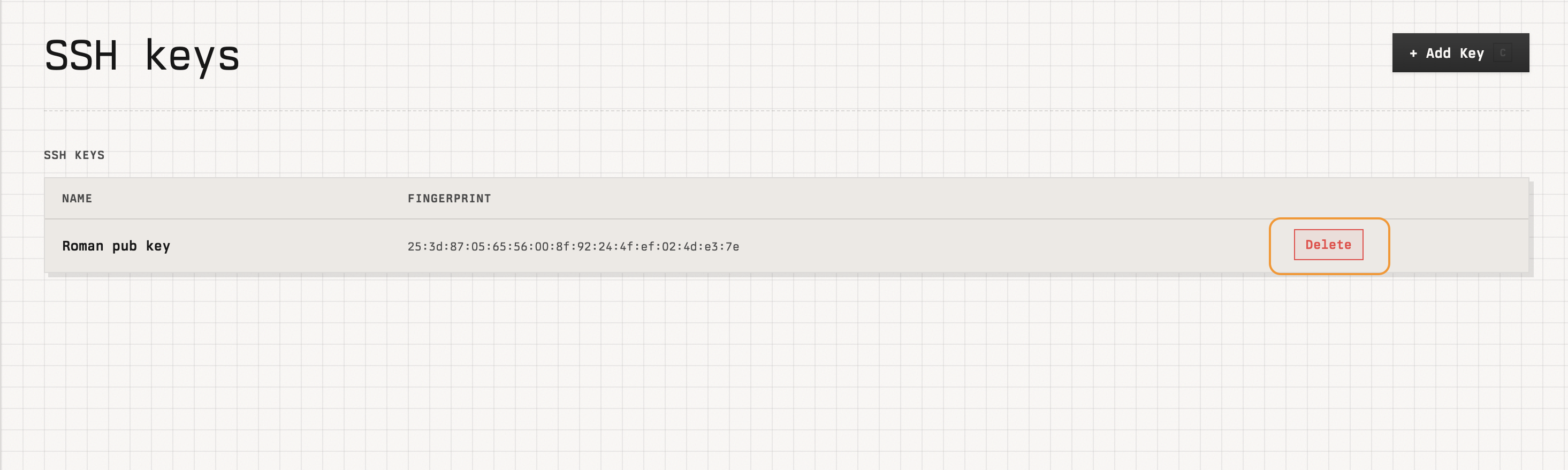
Note: Deleting a key removes it from your account but does not remove it from any virtual machines it has already been attached to.
Attaching a key to a virtual machine
To use an SSH key on a new VM, select it in the SSH keys field on the Create VM page. See Cloud Compute for the full VM creation flow.