Instance creation with root SSH permitted
Last updated: May 21, 2026
To enable SSH access to a new virtual machine, add a public key to your American Cloud account, then select that key when you create the VM.
Add an SSH key to your account
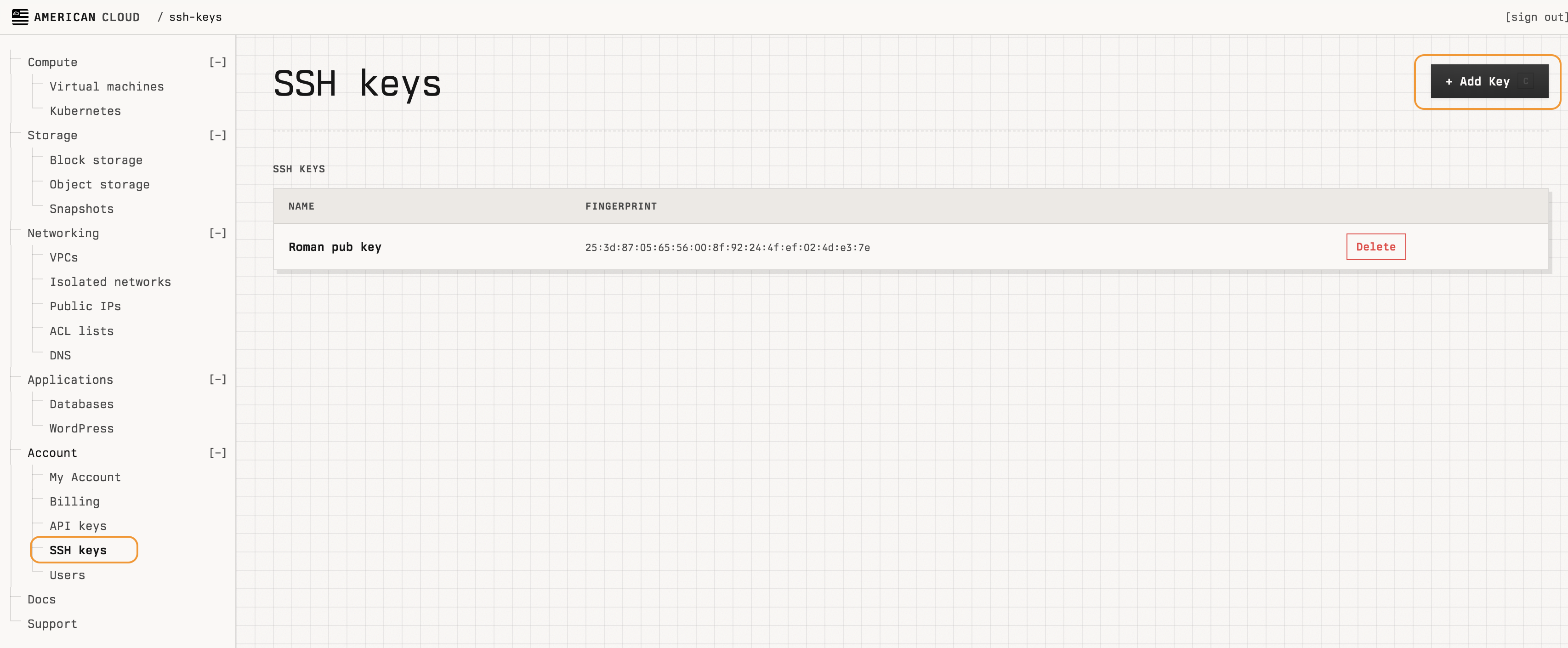
- In the left navigation, under Account, select SSH keys.
- In the top right, click + Add Key.
- In the Add SSH Key dialog, enter a Name for the key (for example,
test-key). - Do one of the following:
- Paste your existing public key into the Public key field, then click Add Key.
- Leave the Public key field empty and click Generate Key to have American Cloud generate a new key pair for you.
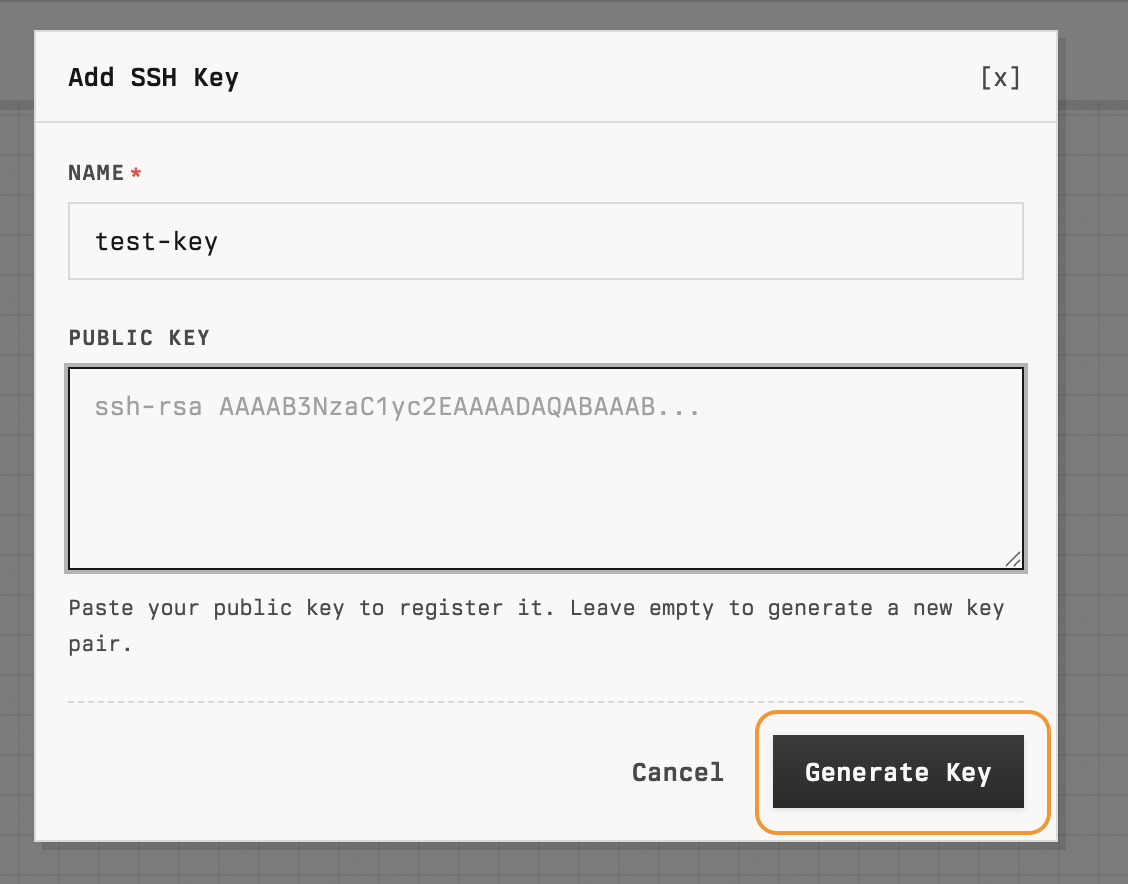
Note: If you click Generate Key, download and store the private key immediately. It is shown only once.
Attach the key when creating a VM
- Start a new VM as described in Cloud Compute.
- In the Options section of the Create virtual machine page, under SSH keys, check the box next to the key you want to add.
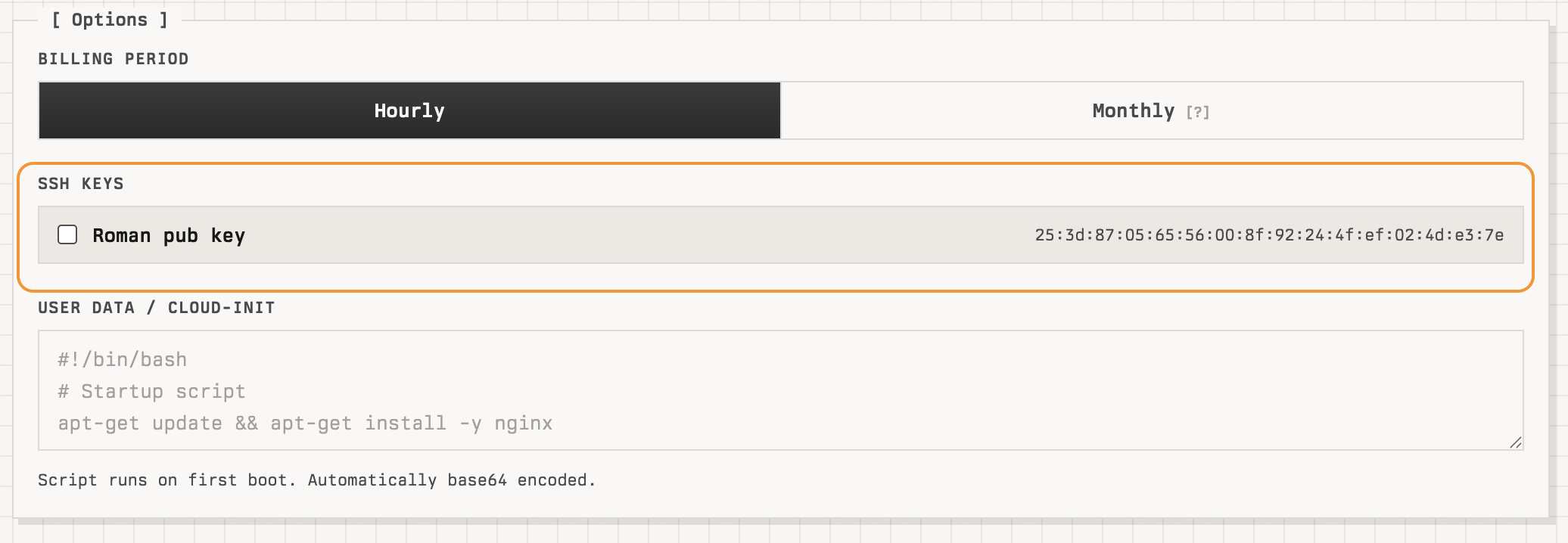
- Click Create VM.
Connect to the VM
Once the VM is running, copy its public IP from the details page and connect:
bash
ssh root@<public-ip>Use the private key that pairs with the public key you attached. If you generated the key in the portal, use the file you downloaded.
[ On this page ]