Self-host Ghost
Last updated:
Self-hosted Ghost needs two email setups, and most guides cover one. Logins, staff invites and password resets go out over plain SMTP from any provider. Newsletters need Mailgun, the only bulk provider Ghost supports. Skip the first and you can't even reset your own admin password.
There are three ways to host Ghost: Ghost(Pro), a managed Ghost host, or your own server. This recipe is the third. With the American Cloud MCP server connected, one prompt has your AI assistant price the VM before anything is billed, create it, and install Ghost 6 with Ghost's own Docker setup: Caddy for HTTPS, MySQL 8 for the database, and transactional email set up from the start.
What it costs
Ghost is free, open-source software under the MIT license, so self-hosting it costs what the server and the email cost. On American Cloud that's $23.125 a month for the server in this recipe, or $38.125 once you send newsletters on Mailgun's Basic plan.
| Item | Monthly cost |
|---|---|
| VM: 1 vCPU, 2 GB RAM, 50 GB disk (monthly term) | $23.125 |
| Public IP (the network's own address) | $0 |
| Network created with the VM | $0 |
| Egress (page views, images, feeds) | $0 |
| Mailgun Basic, only if you send newsletters | $15 |
| Object storage for nightly backups, optional | $5 (250 GB minimum) |
| Snapshot before an update, optional | $10 per 100 GB |
Billed by the hour instead, the VM costs 2% more.
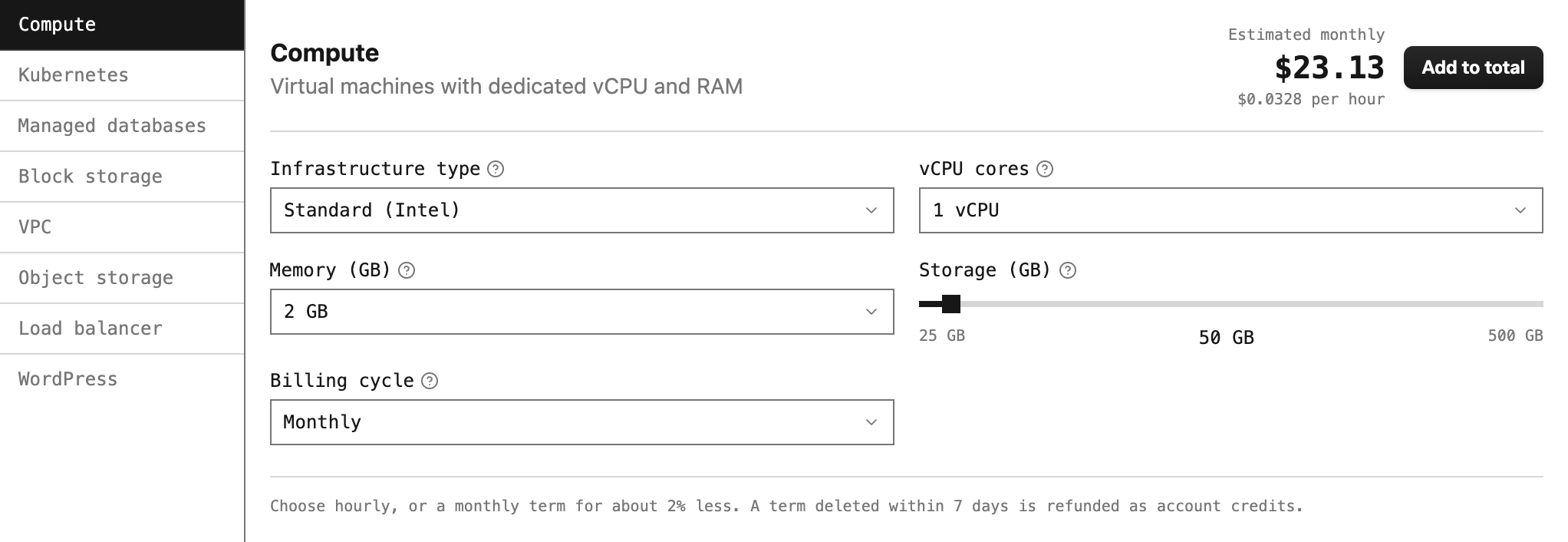
Why 2 GB: Ghost asks for a server with at least 1 GB of memory, and the example server in its Docker guide has 2 GB and 1 CPU. Here MySQL and Caddy share the VM with Ghost, so we start at 2 GB. If the site outgrows it, your assistant resizes the VM in place with scale_vm.
Email is the one cost that grows with your list. Mailgun's Free plan sends 100 emails a day, and Basic is $15 a month for 10,000 emails, enough for 2,500 subscribers getting four issues a month. The server's price doesn't depend on how many members you have.
Self-hosted Ghost has every feature, custom themes and paid subscriptions included. On Ghost(Pro), those two need the Publisher plan, at $29 a month billed yearly for 1,000 members, and the price climbs with your member count. Starter, at $18 a month billed yearly, has neither. Among managed Ghost hosts, Magic Pages is $14.50 a month with 10,000 emails included, and PikaPods starts at $3.30 a month for half a CPU and 1 GB of RAM. Most of what they charge for is the upkeep: updates, backups and email. On your own server, your assistant sets up the email and the nightly backups, and an update is three commands.
Docker or Ghost-CLI?
Ghost has two official ways to self-host. This recipe uses Docker, and it's the one we'd pick for any new site.
Ghost-CLI installs Ghost straight onto Ubuntu with NGINX and MySQL. Ghost's docs still call it the officially recommended production install. The Docker Compose setup, launched with Ghost 6.0, runs Ghost, Caddy and MySQL in containers, and the docs label it a preview.
Ghost-CLI is on its way out. In August 2026, Ghost staff wrote that "the Ghost 6.x release line will be the last major version of Ghost that is usable with Ghost-CLI", and that Docker Compose becomes the official way once Ghost 7.0 ships. Ghost 7.0 isn't out yet; the latest release is 6.79.0, from November 24, 2026. Docker is also the only path that runs Ghost's self-hosted web analytics.
Already on Ghost-CLI? ghost migrate-export (Ghost 6.61.0 or later, still in beta) packs your database, images, themes and settings into a bundle you can import into a Docker install.
Why Claude Code for this
Any MCP client can create the server. Installing Ghost also means running commands on it: SSH in, install Docker, clone Ghost's files, write the .env, start the containers. Claude Code has the American Cloud tools and your terminal in one session, so it can do both without you switching tools. That's the setup this recipe assumes. Cursor and the other clients work too. You'll run the SSH steps yourself when the assistant tells you to.
Provisioning is a write operation. You'll need write access: set the app to Full access in Connected apps on the hosted server, or use a Full access API token and the --allow-writes flag on the local server. See the
overview for setup and safety details. To explore first, set the app to Read-only, then switch to write access when you're ready to build.
Before you start
- A domain you control. Caddy can't get a certificate until an A record points a subdomain, such as
blog, at the server. - The MCP server connected to your assistant with write access, as the note above describes. On the local server, the DNS tools are off by default: start it with
--services all, or adddnsto your--serviceslist. - An SMTP account for transactional email, from any provider. Have its host, port, username and the from address ready. You'll paste the password on the server yourself.
- A Mailgun account, only if you'll send newsletters. You can add it after the site is up.
The one prompt that does it
Open Claude Code and paste this, filling in the placeholders. Read the cost estimate before you approve anything.
I want to self-host Ghost on American Cloud at blog.{your-domain.com}, using
Ghost's official Docker setup (TryGhost/ghost-docker). Plan it out first,
then walk through it step by step:

1. List the available regions, Ubuntu images and VM packages. Size the VM at
   1 vCPU, 2 GB of RAM and a 50 GB disk.
2. Check whether my SSH key is already registered. If not, register my
   existing public key ~/.ssh/id_ed25519.pub with create_ssh_key. If I have
   no key pair, ask me before you run ssh-keygen.
3. Show me the monthly cost estimate for the VM before creating anything.
   Wait for me to confirm.
4. Create an Ubuntu VM with that SSH key and open inbound ports 22, 80 and
   443 only. Do not open 2368. Wait until it's running and has a public IP.
5. DNS: check whether {your-domain.com} is already a zone on American Cloud.
   If not, create the zone and tell me to set my registrar's nameservers to
   ns1.americancloud.org and ns2.americancloud.org. Then add an A record
   with Hostname blog, Type A, Value the VM's public IP.
6. Over SSH, install Docker Engine and the Docker Compose plugin.
7. Clone https://github.com/TryGhost/ghost-docker.git to /opt/ghost. Copy
   .env.example to .env and caddy/Caddyfile.example to caddy/Caddyfile.
8. In .env, set DOMAIN=blog.{your-domain.com}. Generate DATABASE_ROOT_PASSWORD
   and DATABASE_PASSWORD on the server with openssl rand -hex 32 and write
   them straight into .env. Never print their values in this chat.
9. Ask me for my SMTP host, port, username and from address, and fill in the
   SMTP section of .env. Leave mail__options__auth__pass empty and give me one
   SSH command that opens .env in an editor, so I can paste the password
   myself. Wait until I say it's done.
10. Confirm that compose.yml publishes only Caddy's ports 80 and 443, and
    that Caddy reaches Ghost over the Docker network.
11. Once blog.{your-domain.com} resolves to the VM, run docker compose pull
    and docker compose up -d in /opt/ghost. Check the caddy and ghost logs
    for a certificate and a clean start.

Then give me https://blog.{your-domain.com}/ghost so I can finish setup.
What your assistant will do
Here's the sequence, tool by tool:
-
Survey the options. It calls
list_regions,list_images(filtered to Ubuntu) andlist_vm_packagesto find a region near you, a current Ubuntu LTS image and a package for 1 vCPU and 2 GB. -
Sort out the SSH key. It calls
list_ssh_keysto see what's registered. If your key isn't there, it registers your existing public key (for example~/.ssh/id_ed25519.pub) withcreate_ssh_key. The private key stays on your machine and never passes through the chat. -
Price it first. It calls
get_cost_estimate_vmwith the exact region, package, disk size and image, and shows you the monthly number before creating anything. -
Create the server. On your go-ahead,
create_vmprovisions the VM. The same call carrieskeypairsto install your SSH key andnetworkAccess.inboundPortsto open 22, 80 and 443 on the network's own public IP. Opening a port this way sets up the firewall rule and the port forwarding together. The assistant pollsget_vmuntil the VM is running. -
Point the domain at it. It calls
list_dns_zonesto see whether your domain is already hosted. If not,create_dns_zoneadds it, and you set your registrar's nameservers tons1.americancloud.organdns2.americancloud.org. Thencreate_dns_recordadds the record:Hostname Type Value blogA the VM's public IP -
Install Docker. Now in the terminal, it installs Docker Engine and the Compose plugin over SSH.
-
Fetch Ghost's files. It clones Ghost's
ghost-dockerrepository to/opt/ghostand copies the two example files, as Ghost's Docker guide does. A subdomain likeblogneeds none of the Caddyfile's optional blocks, which are for bare domains,wwwnames and a separate admin domain. -
Write the secrets on the server. It generates both database passwords with
openssl rand -hex 32on the VM and writes them into.env. The values never pass through the chat. Keep a copy of that.envsomewhere safe: Ghost's example file warns that the database settings "must not be changed once the database is initialised." -
Fill in transactional email. It writes your SMTP host, port, username and from address, then hands you a command like this one to paste the password yourself:
bashssh -t -i ~/.ssh/<your-key> cloud@<public-ip> 'sudo nano /opt/ghost/.env' -
Bring it up. Once the name resolves, it pulls the images and starts the stack. Caddy gets an HTTPS certificate and passes traffic to Ghost on port 2368 over the private Docker network.
When it's done, the assistant hands you https://blog.{your-domain.com}/ghost. Open it and finish setup in Ghost Admin.
Tell the assistant to explain each step before it runs it if you want to follow along: "narrate what you're about to do and why." Destructive operations are flagged regardless, and clients that support confirmations will prompt you before anything irreversible.
Email: two setups, not one
Transactional email (required)
Ghost sends staff invites, password resets, and member sign-up and sign-in links over SMTP, with any provider you like. The prompt fills in this block in /opt/ghost/.env, and you add the password:
mail__transport=SMTP
mail__options__host=smtp.example.com
mail__options__port=465
mail__options__secure=true
mail__options__auth__user=[email protected]
mail__options__auth__pass=<paste on the server>
mail__from="'Acme Support' <[email protected]>"
When you change this block later, recreate the Ghost container so it reads the new values: docker compose up -d --force-recreate ghost. A plain restart doesn't.
Ghost's own docs warn: "Some hosting providers block outbound SMTP." American Cloud doesn't: your VM can reach your provider on port 25, 465 or 587 from the start. Test it right away: invite a second staff user from Ghost Admin and check that the email arrives. If the ghost logs show a connection timeout instead, check the host, port and security setting against what your provider lists, then recreate the container.
Newsletters (Mailgun only)
Newsletters can't go over SMTP: Ghost sends them through Mailgun's API. Enter your Mailgun domain and API key in Ghost Admin's Email newsletter settings. Nothing in .env changes.
Mailgun also offers SMTP, so one Mailgun account can cover both setups: its SMTP credentials go in .env, its API key in the newsletter settings. Add your sending domain's DNS records in Mailgun early, and send a small first issue, since Mailgun may limit a brand-new sending domain.
Updates and backups
To update, run three commands in /opt/ghost:
git pull && docker compose pull && docker compose up -dThe compose file tracks the ghost:6-alpine image, so each pull takes the newest Ghost 6 release. Don't pin a version with GHOST_VERSION in .env unless you mean to: Ghost's example file warns that "the update commands won't work" if you do. Take a snapshot of the VM before each update, so a bad one is a revert, not a rebuild.
Ghost's Docker guide gives no backup command, so here's what to save. Everything that makes your site lives in /opt/ghost:
- The database. Dump the
ghostdatabase from thedbcontainer withmysqldump, rather than copying the files indata/mysqlwhile MySQL is running. - The content folder.
data/ghostholds your images, themes and other uploads. Archive it withtar. - The
.envfile. It holds the database passwords. Keep one copy off the server, in your password manager.
VM snapshots are manual, so the nightly job is a cron on the VM that sends both files to object storage. Paste this once the site is up:
Set up nightly backups for my Ghost site in /opt/ghost. Create an object
storage unit and a bucket called ghost-backups, and show me the cost first.
On the VM, write a script that dumps the ghost MySQL database from the db
container, archives /opt/ghost/data/ghost, and uploads both to the bucket
with the date in the name. Store the bucket's keys on the server only. Run
it once, show me the two files in the bucket, then schedule it with cron
for 3 a.m. every day and keep the last 14 days.
Backups and restore covers the restore drill. Run it once before you need it.
Ghost 6 also ships an S3Storage adapter that can keep uploaded images in any S3-compatible bucket. This recipe keeps them on the VM's disk.
Troubleshooting
The browser shows a certificate error. Caddy can't get a certificate until blog.{your-domain.com} resolves to the VM and ports 80 and 443 are open. Ask your assistant to "check what blog.{your-domain.com} resolves to, confirm 80 and 443 are open with list_firewall_rules, and show me the caddy logs."
You're locked out and no reset email comes. Transactional email isn't working. Fix the SMTP block in .env, recreate the Ghost container, then ask for the reset again.
Newsletters fail with BULK_EMAIL_SEND_FAILED. That usually means a Mailgun setting is wrong. Check the Mailgun domain, region and API key you entered for newsletters.
Ghost stops or restarts during an update. The VM is likely short on memory. Ask your assistant to show you the price of 4 GB of RAM, then resize with scale_vm.
You changed DOMAIN in .env. Caddy needs the new name too. Run docker compose up -d --force-recreate ghost caddy.
Stuck on the American Cloud side, like the VM, the network or DNS? Support replies in under 2 minutes.
Next steps
- Deploy a Docker Compose app: the general pattern for running any compose stack on a VM
- Backups and restore: snapshots, nightly dumps and the restore drill
- Object storage: an off-server home for your database dumps
- Self-host n8n: the same approach for a workflow tool, with Postgres and Traefik
- Things to try with the MCP server: more prompt ideas across compute, networking and DNS