Load balancer
Last updated: May 22, 2026
A load balancer distributes incoming traffic across multiple virtual machines so no single VM is overwhelmed. On American Cloud, load balancing is configured as a set of load balancer rules attached to a public IP — there is no separate "Load Balancer" resource. Each rule maps a public port on the IP to a private port on one or more backend VMs.
Prerequisites
Before you create a rule, you need:
- At least two VMs running the same application. See Cloud Compute.
- A public IP allocated to the network those VMs are attached to.
Add a load balancer rule
- In the left navigation, under Networking, select Public IPs.
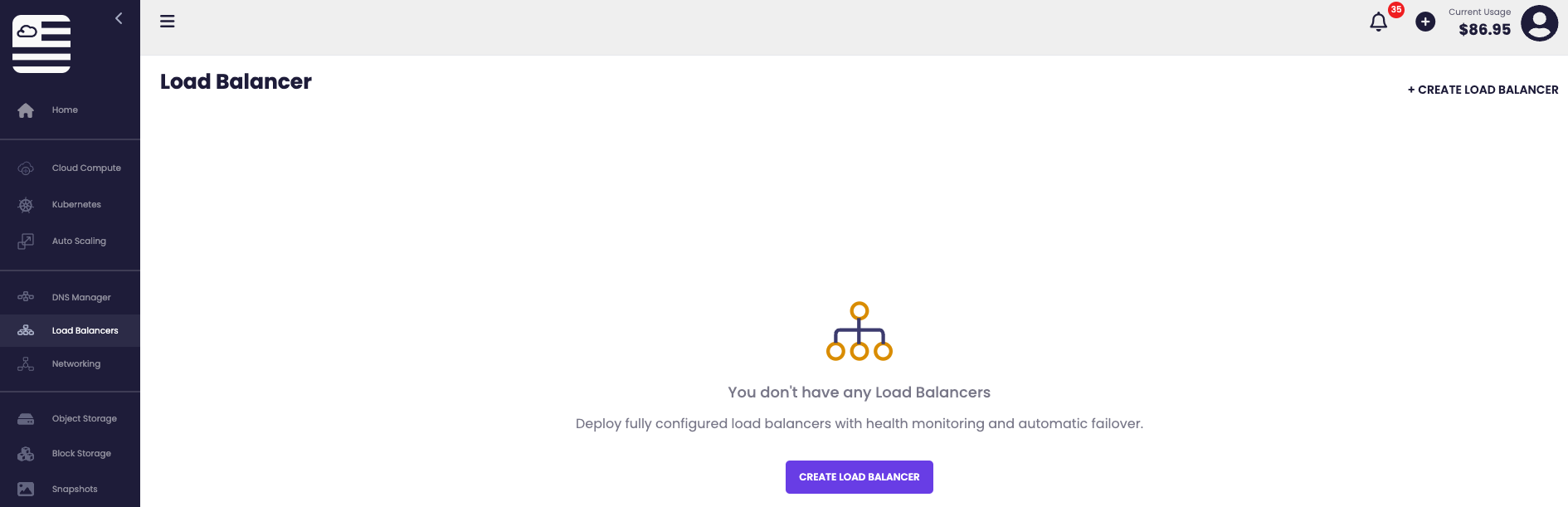
- Click the public IP you want to load-balance traffic on.
- Scroll to the Load Balancer Rules section and click + Add Rule.
- In the Add Load Balancer Rule dialog, fill in the fields:
- Name — a unique name for the rule (for example,
web-https). - Algorithm — how traffic is distributed across backends. Round Robin is the default.
- Public port — the port clients connect to on the public IP (for example,
443). - Private port — the port on the backend VMs that receives the traffic (for example,
443). - Protocol —
TCPorUDP.
- Name — a unique name for the rule (for example,
- Click Add Rule.
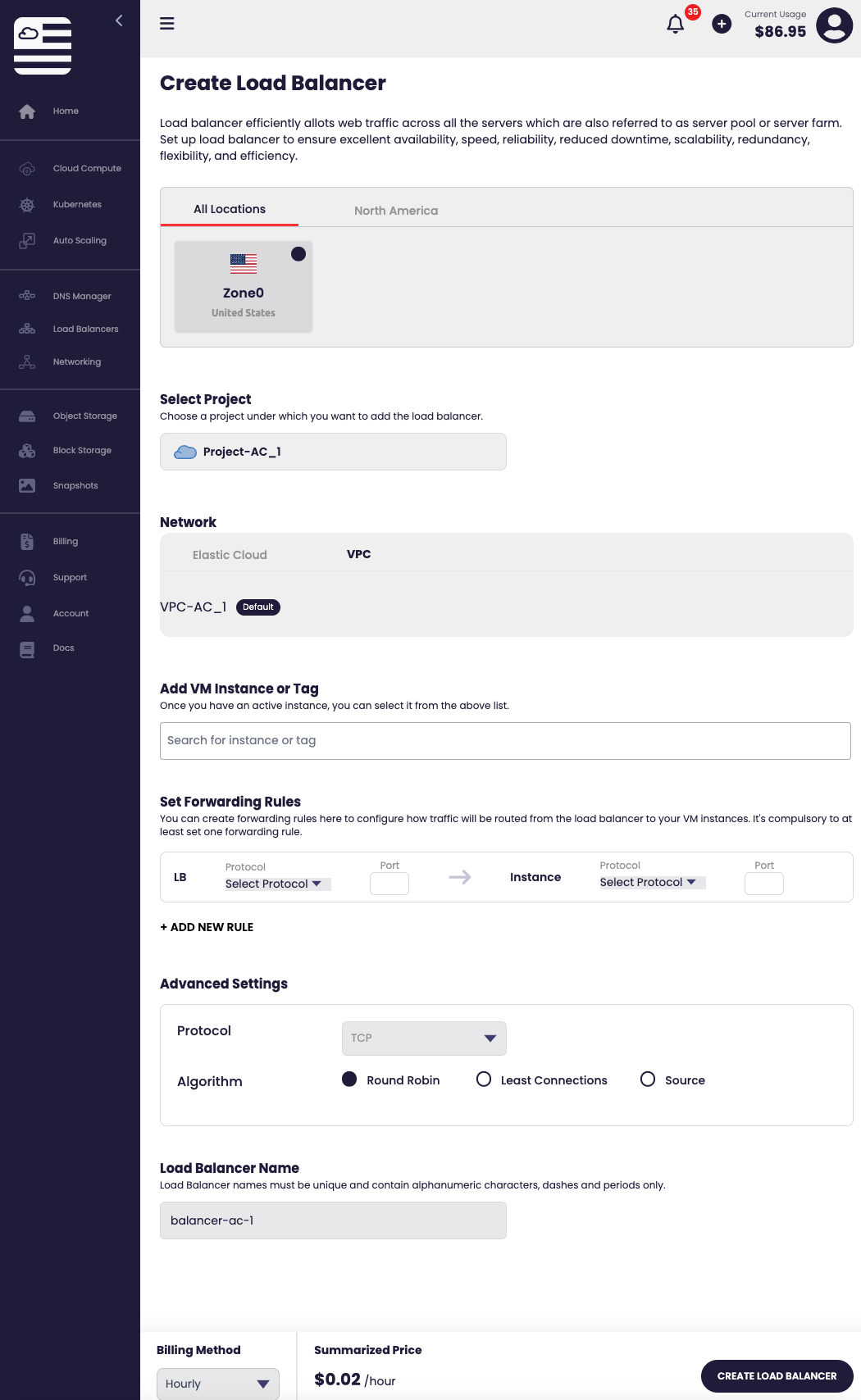
The new rule appears in the Load Balancer Rules list.
Attach VMs to a rule
A rule does nothing until you tell it which VMs to send traffic to.
- Find the rule in the Load Balancer Rules list and click VMs.
- Select the VMs that should receive traffic for this rule.
- Save.
The selected VMs show up in the Instances column on the rule's row.
Manage rules
Each rule row has three actions:
- Edit — change name, algorithm, ports, or protocol.
- VMs — change which backends receive traffic.
- Delete — remove the rule.

Rule state
The State column shows the current status of each rule. A rule must be ACTIVE to serve traffic.

If a rule is not active, check that at least one VM is attached and that the protocol and ports match what the application is listening on.