Grok
Last updated:
This guide connects Grok to American Cloud through the hosted MCP server, so Grok can inspect and manage your infrastructure in a conversation. Grok connects to remote servers only, so there is no local-server path for it.
- An American Cloud account. You sign in with it during setup.
- A Grok account. Connectors are available to all Grok users. On a Business or Enterprise plan, a team admin provisions the connector in the xAI cloud console first, and members then connect to it.
Connect
-
Open grok.com/connectors.
-
Click New Connector, then Custom.
-
Enter a name, for example
American Cloud, and the server address:https://mcp.americancloud.com/mcp -
Complete the sign-in. Your browser opens the American Cloud sign-in page, in a pop-up, so allow pop-ups for grok.com. Sign in, then click Connect on the consent page.
-
You receive an email that confirms the connection. If you did not connect Grok, open Connected apps and revoke it.
Grok discovers the tools the server exposes and uses them when a question relates to your American Cloud account.
Grok starts read-only. Grok registered itself with the sign-in service when you connected it, so American Cloud cannot confirm which app it is, and the app begins with read-only access. Grok can list and price resources but not create, change or delete them. To allow writes, open Connected apps and choose Full access for Grok. The change applies to Grok's next request; you do not need to reconnect.
Verify
Start a new chat and ask:
"What regions can I deploy to on American Cloud?"
If Grok lists regions, you are connected.
Permissions
The app starts read-only (see the note above). To let Grok create and change resources, open Connected apps, click Permissions on the Grok row, and choose Full access.
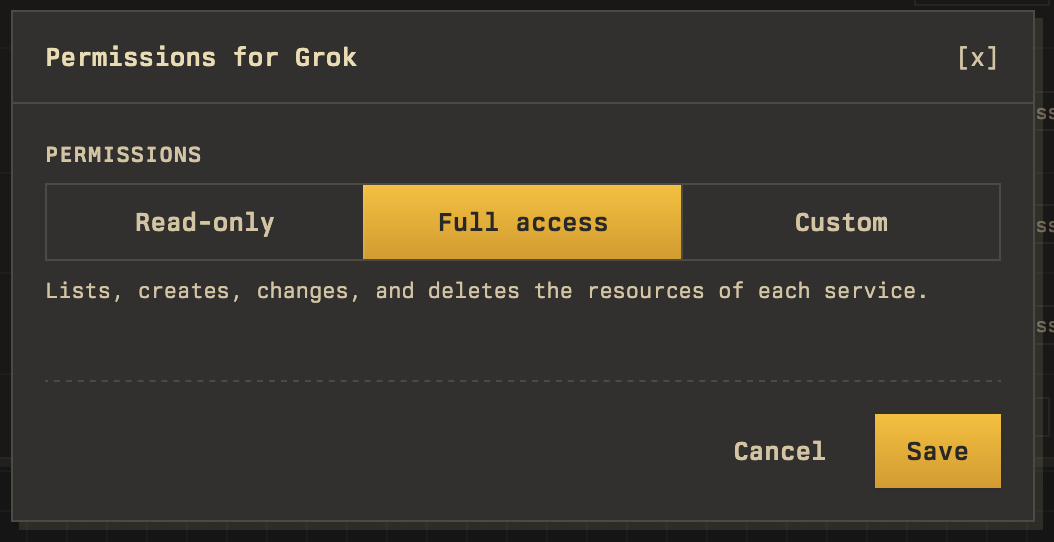
Every tool is visible to Grok from the start; while the app is read-only, a write tool answers with the permission it needs and where to grant it. Tools that delete or reinstall a resource are marked destructive. To revoke the app, use the same page. Grok picks up a permission change on its next request. The overview explains the permission model.
Giving Grok a long autonomous task? Keep the app Read-only while it plans, then switch to Full access for the build.
Grok manages your account, not the inside of a VM. Grok has no shell, so it cannot run commands on a server. It can create a VM that configures itself with a cloud-init script, or open a browser console for you, once you choose Full access for Grok. For SSH work in the same session, use a coding agent such as Claude Code. See Inside a VM.
Troubleshooting
- The connector shows an error. Open grok.com/connectors, remove the American Cloud connector, and add it again. This happens after a revoke, or when a sign-in expires. Each new connection makes a new row in Connected apps, and the new row starts read-only: choose Full access on the new row again, and revoke the old row.
- Grok says it cannot create or change something. The app is read-only. Choose Full access on Connected apps and ask again. No reconnect is needed.
- "This app was disconnected in Connected apps." Someone revoked the app. Wait a few minutes, then connect again.
Next steps
- Things to try — prompt ideas from quick audits to full provisioning
- Overview — the permission model and safety details