Self-host GitLab
Last updated:
The archive gitlab-backup create writes won't bring a self-hosted GitLab back on its own. It leaves out gitlab-secrets.json, which holds the key to every encrypted value in the database, and gitlab.rb, your settings. And a restore only works on the exact GitLab version that made the archive. Lose any of those three and the backup can't put your server back the way it was.
This recipe hands the setup to your AI assistant. With the American Cloud MCP server connected, one prompt prices the VM before anything is billed, installs GitLab Community Edition (CE) with HTTPS, and ships a nightly backup to object storage with both files and the version number next to the archive. It's for a team that wants its code and CI on its own server. If you'd rather click through the console, the GitLab marketplace image installs it for you.
What it costs
Self-hosting GitLab on American Cloud costs $91.25 a month for the server and its backup bucket, or $122.81 with a separate CI runner. GitLab CE itself is free to use and open source under the MIT Expat license, so the bill is the infrastructure.
| Item | Monthly cost |
|---|---|
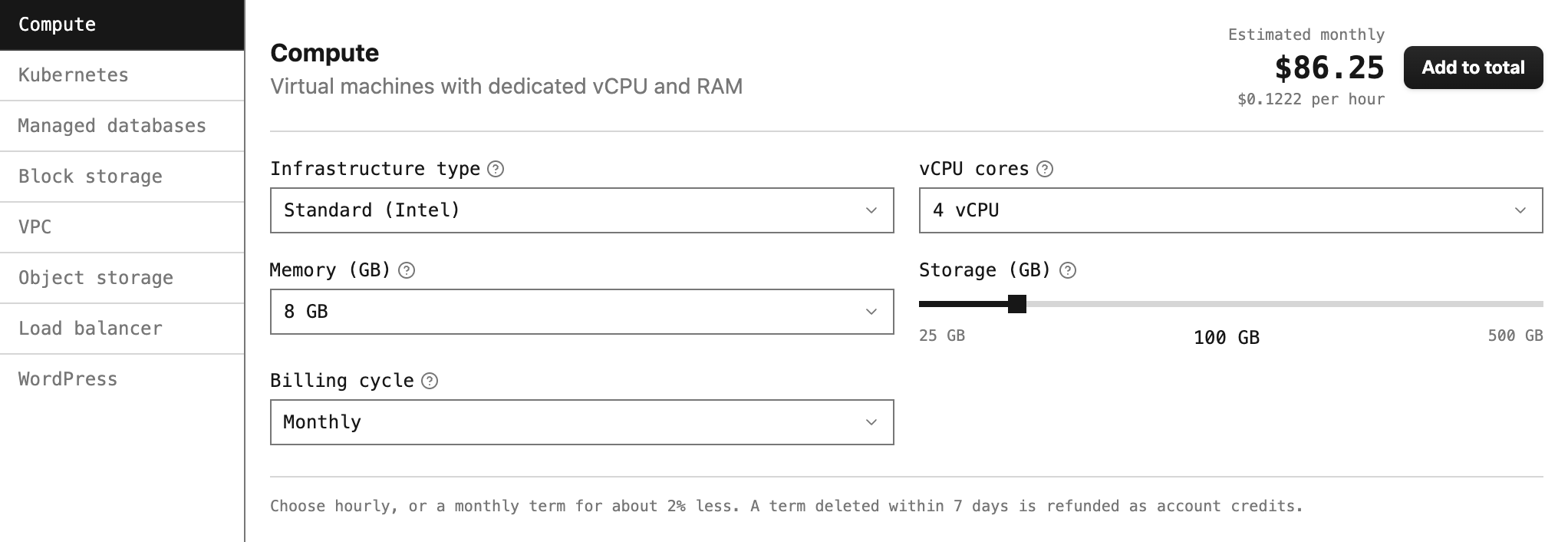
| GitLab VM: 4 vCPU, 8 GB RAM, 100 GB disk (monthly term) | $86.25 |
| Backup bucket: object storage, 250 GB minimum at $0.02 per GB | $5 |
| Public IP (the network's own address) | $0 |
| Network created with the VM | $0 |
| Egress (git clones, CI artifacts, container pulls) | $0 |
| Total | $91.25 |
| Runner VM, optional: 2 vCPU, 2 GB RAM, 25 GB disk | $31.5625 |
| Total with the runner | $122.81 |
| Snapshot, optional | $10 per 100 GB |
VMs bill $10 per vCPU, $5 per GB of RAM and $1 per 16 GB of disk. Billing by the hour instead of a monthly term adds 2%, which puts the GitLab VM at $87.975.
Why 8 GB of RAM
GitLab's requirements page puts a single server's baseline at 8 vCPU and 16 GB of memory, and says that in memory-constrained setups "GitLab can run with at least 8 GB of memory." That baseline would cost $166.25 a month here. This recipe starts at the 8 GB floor with 4 vCPU, the size our marketplace page recommends too, and you resize in place with scale_vm when the team grows. Don't go smaller, and don't use swap to stretch it: GitLab says to "disable swap where possible."
At that floor, the prompt applies the settings from GitLab's memory-constrained page to /etc/gitlab/gitlab.rb:
puma['worker_processes'] = 0

sidekiq['concurrency'] = 10

prometheus_monitoring['enable'] = false

gitlab_rails['env'] = {
  'MALLOC_CONF' => 'dirty_decay_ms:1000,muzzy_decay_ms:1000'
}

gitaly['env'] = {
  'MALLOC_CONF' => 'dirty_decay_ms:1000,muzzy_decay_ms:1000'
}
Each one trades speed for memory. puma['worker_processes'] = 0 runs a single Puma web process instead of a cluster, which GitLab measured at 100 to 400 MB saved and suggests "for small installations that do not require high throughput." Sidekiq drops from 20 background jobs at once to 10. Turning monitoring off saves about 300 MB and costs you GitLab's built-in Prometheus metrics.
Why Claude Code for this
Any MCP client can create the infrastructure. But installing GitLab also means running commands on the server: SSH in, add GitLab's package repository, edit gitlab.rb, set up the backup job. Claude Code combines the American Cloud tools with your terminal, so one session can provision the VM and set up GitLab on it without you switching tools. That's the setup this recipe assumes. Cursor and the other clients work too. You'll just run the SSH steps yourself when the assistant tells you to.
Provisioning is a write operation. You'll need write access: set the app to Full access in Connected apps on the hosted server, or use a Full access API token and the --allow-writes flag on the local server. See the
overview for setup and safety details. To explore first, set the app to Read-only, then switch to write access when you're ready to build.
Before you start
- A domain you control, for an address like
gitlab.your-domain.com. - The MCP server connected to your assistant with write access, as the note above describes.
- On the local MCP server, the DNS tools are off by default. Start it with
--services all, or adddnsto your--serviceslist. The storage tools are on by default. - An SMTP account from your email provider. GitLab sends sign-up, password reset and pipeline mail, and it can't without one. You add it after the install (email).
The one prompt that does it
Open Claude Code and paste this, filling in the placeholders. Read the cost estimate it shows you before approving anything.
I want to self-host GitLab CE on American Cloud at gitlab.{your-domain.com},
with HTTPS and a nightly off-server backup. Plan it out first, then walk
through it step by step:

1. List the available regions, Ubuntu images and VM packages. Size the VM at
   4 vCPU, 8 GB of RAM and a 100 GB disk.
2. Check whether my SSH key is already registered. If not, register my
   public key ~/.ssh/id_ed25519.pub with create_ssh_key. If I have no key
   pair, ask me before you run ssh-keygen.
3. Show me the monthly cost estimate for the VM and for an object storage
   unit before creating anything. Wait for me to confirm.
4. Create an Ubuntu VM with that SSH key and open inbound ports 22, 80 and
   443 only. Wait until it's running and has a public IP.
5. DNS: check whether {your-domain.com} is already a zone on American Cloud.
   If not, create the zone and tell me to set my registrar's nameservers to
   ns1.americancloud.org and ns2.americancloud.org. Then add an A record
   with Hostname gitlab, Type A, Value the VM's public IP.
6. Once gitlab.{your-domain.com} resolves to the VM, install GitLab CE with
   the Linux package, following GitLab's "Install the Linux package on
   Ubuntu" page: add GitLab's package repository with script.deb.sh, then
   install gitlab-ce with EXTERNAL_URL="https://gitlab.{your-domain.com}".
   Confirm Let's Encrypt issued the certificate.
7. Add GitLab's memory-constrained settings to /etc/gitlab/gitlab.rb:
   puma['worker_processes'] = 0, sidekiq['concurrency'] = 10,
   prometheus_monitoring['enable'] = false, and MALLOC_CONF set to
   dirty_decay_ms:1000,muzzy_decay_ms:1000 for gitlab_rails and gitaly.
   Run sudo gitlab-ctl reconfigure.
8. Tell me the installed GitLab version. Tell me where the initial root
   password file is and how long it lasts. Never print the password here.
9. Create an object storage unit and a bucket called
   gitlab-backups. Fetch the unit's S3 keys and write them straight into
   gitlab.rb on the server as backup_upload_connection (provider AWS, the
   endpoint you get, path_style true), with backup_upload_remote_directory
   'gitlab-backups' and backup_keep_time 604800. Never print the keys here.
   Then reconfigure again.
10. Write a nightly script for root's crontab at 02:00. It runs
    /opt/gitlab/bin/gitlab-backup create CRON=1, then uploads
    /etc/gitlab/gitlab-secrets.json, /etc/gitlab/gitlab.rb and a
    version.txt with the output of dpkg -l gitlab-ce to the same bucket,
    under a folder named with the date, like 2026-11-26/. Use the AWS CLI
    with the endpoint, and keep its keys on the server. Prune anything in
    the bucket older than 14 days.
11. Run the script once now and list what landed in the bucket.

Then give me the URL to open.
What your assistant will do
-
Look up the options. It calls
list_regions,list_images(filtered to Ubuntu) andlist_vm_packagesto find a region near you, a current Ubuntu LTS image and a package for 4 vCPU and 8 GB. GitLab's Linux package supports Ubuntu 22.04, 24.04 and 26.04. -
Check your SSH key. It calls
list_ssh_keysto see what's registered. If your key isn't there, it registers your existing public key (for example~/.ssh/id_ed25519.pub) withcreate_ssh_key. The private key stays on your machine and never passes through the chat. -
Price it first. It calls
get_cost_estimate_vmwith the exact region, package, disk size and image, andget_cost_estimate_object_storagefor the bucket, and shows you the monthly numbers before creating anything. Nothing is billed until you approve. -
Create the server. On your go-ahead,
create_vmprovisions the VM. The same call carrieskeypairsto install your SSH key andnetworkAccess.inboundPortsto open 22, 80 and 443 on the network's own IP. Opening a port this way sets up the firewall rule and the port forwarding together. The assistant pollsget_vmuntil the VM is running with a public IP. -
Point the domain at it. It calls
list_dns_zonesto see whether your domain is already hosted. If not,create_dns_zoneadds it, and you set your registrar's nameservers tons1.americancloud.organdns2.americancloud.org. Thencreate_dns_recordadds the record:Hostname Type Value gitlabA the VM's public IP -
Install GitLab CE. Over SSH, it runs the commands from GitLab's Ubuntu install page:
bashsudo apt update sudo apt install -y curl curl --location "https://packages.gitlab.com/install/repositories/gitlab/gitlab-ce/script.deb.sh" | sudo bash sudo EXTERNAL_URL="https://gitlab.example.com" apt install gitlab-ceAn
httpsexternal URL makes the package request a Let's Encrypt certificate on its own. GitLab also ships Docker images and a Helm chart, but the Linux package (Omnibus) bundles every service and is the one GitLab calls "quicker to install and easier to upgrade." -
Fit it in 8 GB. It adds the memory settings to
gitlab.rband runssudo gitlab-ctl reconfigure. -
Set up the backup.
create_object_storage_unitandcreate_object_storage_bucketmake the bucket. The assistant fetches the unit's S3 keys and writes them intogitlab.rband the AWS CLI's config on the server, never into the chat. Then it writes the nightly script, schedules it in root's crontab and runs it once so you see the first backup land (why both files go with it).
When it's done, the assistant hands you https://gitlab.{your-domain.com} and the path of the root password file, which you read yourself.
Tell the assistant to explain each step before it runs it if you want to follow along: "narrate what you're about to do and why." Destructive operations are flagged regardless, and clients that support confirmations will prompt you before anything irreversible.
The two files your backup leaves out
GitLab's backup page says it plainly: "The backup Rake task GitLab provides does not store your configuration files." The one that hurts is gitlab-secrets.json, because "if you lose it, then the GitLab application will not be able to decrypt any encrypted values in the database." That covers CI/CD variables and two-factor authentication. Restore a database without it and users with 2FA lose access and runners can't sign in. The file can also change after an upgrade, so a copy from last spring isn't enough.
Then there's the version. GitLab's restore page says "you can only restore a backup to exactly the same version and type (CE or EE) of GitLab on which it was created." A dead server takes the version number with it, unless you wrote it down.
So the nightly job sends four things off the server:
The archive gets to the bucket through GitLab's own upload setting. The prompt writes this into gitlab.rb, GitLab's S3-compatible example with path_style added:
gitlab_rails['backup_upload_connection'] = {
  'provider' => 'AWS',
  'region' => '<region>',
  'aws_access_key_id' => '<access-key>',
  'aws_secret_access_key' => '<secret-key>',
  'endpoint' => 'https://<endpoint-from-assistant>',
  'path_style' => true
}
gitlab_rails['backup_upload_remote_directory'] = 'gitlab-backups'
gitlab_rails['backup_keep_time'] = 604800
GitLab warns that "claiming S3 compatibility does not guarantee a provider works correctly with GitLab," so the first run is the test: the prompt has the assistant run the job once and list the bucket. backup_keep_time deletes local archives older than 7 days. GitLab doesn't prune the bucket, which is why the script does. The schedule itself is GitLab's cron line, 0 2 * * * /opt/gitlab/bin/gitlab-backup create CRON=1, wrapped in a script that uploads the three files after it.
GitLab keeps the secrets file out of the archive on purpose, because storing encrypted data next to its key "defeats the purpose of using encryption in the first place." This recipe puts them in one bucket anyway, so a restore needs one place. That makes the bucket's keys as sensitive as GitLab's root password. Keep one more copy of gitlab-secrets.json in your password manager, and refresh it after upgrades.
Keep GitLab's data on the VM's disk in this setup. GitLab's backup skips anything it stores in object storage, so moving artifacts or the registry there later means backing that up separately.
Restore onto a new server
Run this once as a drill on a throwaway VM, the way Backups and restore does, before the day you need it:
- Create a VM the same size and install GitLab CE at the exact version in
version.txt, with the sameEXTERNAL_URL. Point the A record at the new VM first. - Put
gitlab-secrets.jsonandgitlab.rbback in/etc/gitlab/, then runsudo gitlab-ctl reconfigure. - Copy the archive into
/var/opt/gitlab/backups/, make it owned bygit, stop the services that talk to the database, and restore.
sudo cp <backup-id>_gitlab_backup.tar /var/opt/gitlab/backups/
sudo chown git:git /var/opt/gitlab/backups/<backup-id>_gitlab_backup.tar
sudo gitlab-ctl stop puma
sudo gitlab-ctl stop sidekiq
sudo gitlab-ctl status
sudo gitlab-backup restore BACKUP=<backup-id>
sudo gitlab-ctl reconfigure
sudo gitlab-ctl start
sudo gitlab-rake gitlab:check SANITIZE=true
sudo gitlab-rake gitlab:doctor:secrets
The backup ID is the archive's file name without _gitlab_backup.tar, and it ends in the version, as in GitLab's example 11493107454_2018_04_25_10.6.4-ce. The restore overwrites the database, and it stops with "GitLab version mismatch" if the versions differ. The last command checks that the restored database values can be decrypted, which is the proof the secrets file came back too.
Or hand it to your assistant:
Restore my GitLab backup from the gitlab-backups bucket onto a new VM.
Show me the cost first. Read version.txt from the newest dated folder and
install exactly that GitLab CE version. Put gitlab-secrets.json and
gitlab.rb back in /etc/gitlab and reconfigure, then follow GitLab's
"Restore for Linux package installations" steps. Run gitlab:check and
gitlab:doctor:secrets and show me the results.
Sign in, email and the first settings
Sign in as root. The package writes a random password to /etc/gitlab/initial_root_password and deletes that file after 24 hours, so read it in your own terminal, not in the chat, and change the password at first sign-in:
ssh -i ~/.ssh/<your-key> cloud@<public-ip> 'sudo cat /etc/gitlab/initial_root_password'Missed the 24 hours? Reset it with sudo gitlab-rake "gitlab:password:reset" and enter root as the username. Then go to the Admin area and turn off sign-up unless you want strangers creating accounts on your server.
For email, SSH in yourself and add your provider's SMTP settings to /etc/gitlab/gitlab.rb. Type the password on the server, not into the prompt:
gitlab_rails['smtp_enable'] = true
gitlab_rails['smtp_address'] = "smtp.your-provider.com"
gitlab_rails['smtp_port'] = 587
gitlab_rails['smtp_user_name'] = "your-smtp-user"
gitlab_rails['smtp_password'] = "your-smtp-password"
gitlab_rails['smtp_domain'] = "your-domain.com"
gitlab_rails['smtp_authentication'] = "login"
gitlab_rails['smtp_enable_starttls_auto'] = true
gitlab_rails['gitlab_email_from'] = '[email protected]'
Run sudo gitlab-ctl reconfigure, then send a test from sudo gitlab-rails console:
Notify.test_email('[email protected]', 'Message Subject', 'Message Body').deliver_nowGitLab's SMTP page warns that "outgoing connections to port 25 is blocked on major cloud providers." American Cloud doesn't block outgoing mail: your VM can send on port 25, 465 or 587 from the start. If the test doesn't arrive, check the host, port and TLS settings against what your provider lists.
Add a runner on its own VM
GitLab's runner docs say to "install GitLab Runner on a server separate to where GitLab is installed." A CI job that builds a Docker image can eat the memory GitLab needs, and an 8 GB server has none to spare. The second VM costs $31.5625 a month at 2 vCPU, 2 GB and 25 GB, which is our pick for light pipelines. Grow it with scale_vm if your builds need more.
The runner connects out to GitLab over HTTPS and asks for jobs, so its VM opens only port 22. Paste this:
Add a GitLab Runner for gitlab.{your-domain.com} on its own VM.
1. Show me the monthly cost for an Ubuntu VM with 2 vCPU, 2 GB of RAM and a
   25 GB disk, in the same region as my GitLab VM. Wait for me to confirm.
2. Create it with my registered SSH key and open inbound port 22 only.
3. Over SSH, install Docker Engine and GitLab Runner, following GitLab's
   runner install docs.
4. Tell me where to create an instance runner in GitLab's Admin area.
   Don't ask me for the token. I'll run the register command on the runner
   VM myself.
GitLab shows a runner authentication token that starts with glrt-. Put it in RUNNER_TOKEN on the runner VM and register with the Docker executor, using the command from GitLab's register page:
sudo gitlab-runner register \
  --non-interactive \
  --url "https://gitlab.example.com" \
  --token "$RUNNER_TOKEN" \
  --executor "docker" \
  --docker-image alpine:latest \
  --description "docker-runner"
Upgrades
You own upgrades once GitLab is running, and GitLab moves fast. A minor release ships on the third Thursday of every month and patch releases ship twice a month. As of November 2026 GitLab maintains 19.6 with bug and security fixes, and 19.5 and 19.4 with security fixes only. Fall further behind and you're unpatched.
Some patches can't wait. In September 2026 GitLab fixed two critical vulnerabilities and told self-managed installs still on 18.11 or 19.0 to upgrade "immediately."
You also can't jump versions. GitLab's upgrade path has required stops at x.2, x.5, x.8 and x.11 of every major version, and you install each stop in order. For GitLab 19 that's 19.2, 19.5, 19.8 and 19.11. The last two aren't released yet.
Back up before every upgrade. This prompt does that first, then goes one stop at a time:
Upgrade GitLab CE on my VM. First tell me my current version and the
upgrade path to the latest release, with every required stop, and wait for
my OK. Run the nightly backup script now and confirm the archive,
gitlab-secrets.json, gitlab.rb and version.txt reached the bucket. Show me
the snapshot cost, then snapshot the VM. Upgrade one stop at a time with
apt, and wait for background migrations to finish at each stop before the
next. When it's done, run the backup script again so version.txt matches,
and confirm GitLab answers over HTTPS.
Is self-hosting GitLab worth it?
For a team of more than five, yes, as long as someone on it owns the upgrades above. GitLab.com Free allows 5 users and 400 compute minutes a month per top-level group, and the 5-user limit applies to private groups. It doesn't apply to the Free tier of self-managed GitLab, so the cap doesn't follow you to your own server. GitLab's next tier, Premium, is $29 per user a month, billed annually, on GitLab.com and self-managed alike. A team of 10 that would otherwise move up to Premium on GitLab.com pays $290 a month in seats. This recipe's servers, runner and backups cost $122.81 a month, and your pipelines run on your own runner with no compute-minute meter.
We run the servers under GitLab. Git clones, CI artifacts and a full backup download cost nothing in egress, and when the VM, the network or the bucket acts up, support replies in under 2 minutes.
If you outgrow CE later, you can move to GitLab EE. GitLab's memory guide says to start with CE when memory matters, because "you can always upgrade to GitLab EE later."
Troubleshooting
The browser shows a certificate error. Let's Encrypt can't issue the certificate until gitlab.{your-domain.com} resolves to the VM and ports 80 and 443 are open to it. Fix DNS or the ports, then have the assistant run sudo gitlab-ctl renew-le-certs over SSH. Keep port 80 open after that, because renewals need it.
The page doesn't load after the install. Ask your assistant to "SSH in, run sudo gitlab-ctl status and show me any service that's down, with its logs."
GitLab is slow or runs out of memory. You've outgrown 8 GB. Have the assistant show the cost of 8 vCPU and 16 GB, resize with scale_vm, then remove puma['worker_processes'] = 0 from gitlab.rb and reconfigure (why).
The disk fills up. Local archives in /var/opt/gitlab/backups stay for backup_keep_time, and CI artifacts and registry images grow too. Lower the keep time, since the bucket holds the copies, and set artifact expiry in your pipelines.
A restore fails. Check the version and the secrets file first. Install the exact version from version.txt and put gitlab-secrets.json back before you restore (the two files). The restore also needs free space of at least three times the archive's size in the backup directory.
Next steps
- GitLab from the marketplace: the same install from the console, no assistant needed
- Backups and restore: snapshots, nightly dumps and the restore drill
- Object storage: units, buckets and keys for your backups
- Self-host Ghost and self-host n8n: more apps on the same kind of VM
- Things to try with the MCP server: more prompt ideas across compute, networking and DNS